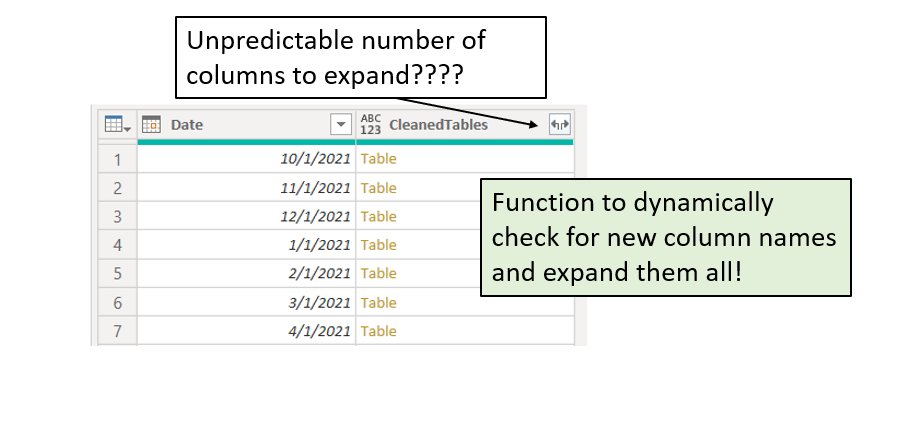
In this article, we will show how to solve a common problem of expanding nested tables or records in Power Query, when the column names of the nested objects vary in numbers. In the second part of the article, we will show a more robust technique for dealing with changing structures of the nested tables.
Static Expand Shortcomings
We will demonstrate the problem with an example of the tables that need to be expanded. This is the common scenario in Power Query that can happen when we merge two queries, invoke a custom function, and in many other scenarios. Below is the visual representation of the problem:
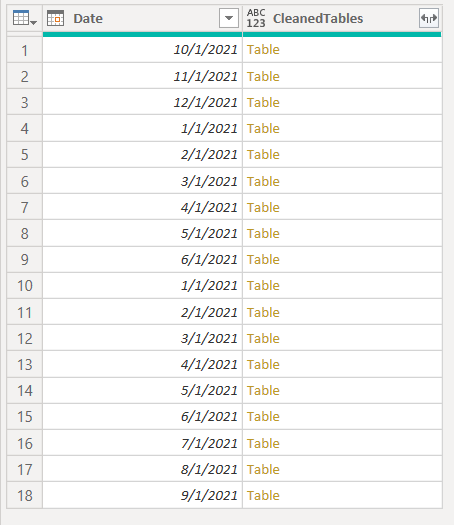
In the picture above, we can see a scenario that happens when we invoke a custom function. Each row now contains a nested table in a structured format, and we want to expand it to access the nested table structures. This is achieved by clicking on the expand icon next to the column header. Below is an example of the structure of one of the nested tables:
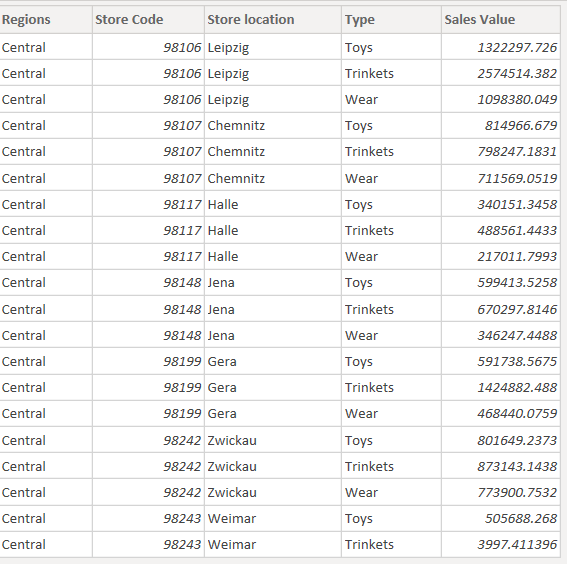
The script used for this query can be found at the following link where we also explained the process of invoking a custom function in Power Query. When we expand the CleanedTables column, the M code in the formula bar is the following:
#"Invoked Custom Function" = Table.AddColumn(#"Removed Other Columns1", "CleanedTables", each FXClean([Data])),
#"Removed Columns" = Table.RemoveColumns(#"Invoked Custom Function",{"Data"}),
#"Expanded CleanedTables" = Table.ExpandTableColumn(#"Removed Columns", "CleanedTables",
                           {"Regions", "Store Code", "Store location", "Type", "Sales Value"},
                           {"Regions", "Store Code", "Store location", "Type", "Sales Value"})
The last two arguments of the Table.ExpandTableColumn() function (rows 4 and 5) are lists of column names {“Regions”, “Store Code”, … } of nested tables. The first list is the list of the column names of the nested tables, and the second list is the list of new names that will be applied to columns once the expansion occurs. The problem is that we are referencing those column names in a way that is not flexible. Imagine that, for whatever reason, the new column comes and we want it to be included in the query. With the code created with Power Query, the column will not be included because it was not present at the moment of recording the PQ script, therefore its name is not in the M code list.
Solution With the Same Table Structures
In the simplest solution, we will assume that each nested table has the same structure. In this type of situation, the solution is to use one of the nested tables to extract column names from it. Remember, our arguments are lists so we need to extract column names as a list of values. This can be achieved by using Table.ColumnNames() function.
#"Expanded CleanedTables" = Table.ExpandTableColumn(#"Removed Columns", "CleanedTables",
                            Table.ColumnNames(#"Removed Columns"[CleanedTables]{0}),
                            Table.ColumnNames(#"Removed Columns"[CleanedTables]{0}))
Instead of making a hardcoded list, we used the first row of the CleanedTables column to access the first table inner structure. Then, we wrapped Table.ColumnNames() function around it to extract column names from it. The #“Removed Columns” is the name of the step that comes before the expansion of the columns. The formula Table.ColumnNames(#“Removed Columns”[CleanedTables]{0}) returns exactly the same list as {“Regions”, “Store Code”, “Store location”, “Type”, “Sales Value”}. The difference is that when an additional column comes, by using Table.ColumnNames(), we will include it also in the expansion.
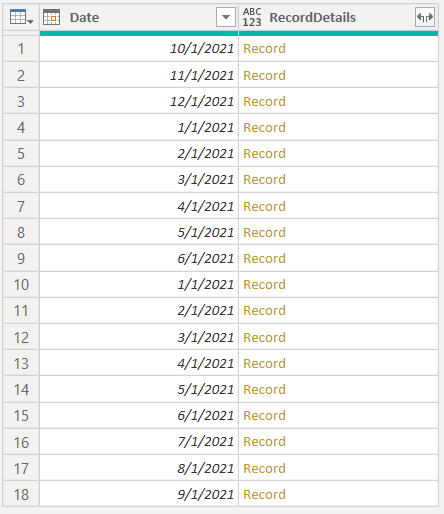
A similar problem might occur with records. To expand the record column, instead of Table.ColumnNames(), we will use Record.FieldNames() function. The picture below describes the situation:
#"Expanded Custom" = Table.ExpandRecordColumn(#"Removed Columns", "RecordDetails",
                     Record.FieldNames(#"Removed Columns"{0}[RecordDetails]),
                     Record.FieldNames(#"Removed Columns"{0}[RecordDetails]))
The code above is similar to the table example. It uses the first record of the RecordDetails column and uses its field names to dynamically expand all the fields of the record.
You can see the idea behind expanding. We use the names of all the columns (or fields in case of the record) to dynamically expand all available columns. The shortcoming of this technique is that it works only when the structure of all the nested tables or records is the same.
Solution With the Changing Table Structures
In the worst-case scenario, the tables or records might not even have the same structure. This is rarely the case, but it is possible.
For example, some tables might not contain the Type column, so we cannot use the first row of the CleanedTables column because we are not sure that it will contain the Type column. Hence, it would not be smart to use the Table.ColumnNames() on the first nested table.
The new solution would be to extract all column names of all the nested tables and make a distinct list that will be used as an argument of the expand function. This approach is possible to achieve in different ways, but we decided to show it through, in our opinion, the most simple one - doing it mainly through user interface without any nested formulas within the Expand step.
GetColNames =  let
                    #"Added ColNames" = Table.AddColumn(#"Removed Columns", "ColNames", each Table.ColumnNames([CleanedTables])),
                    #"Select ColNames" = Table.SelectColumns(#"Added ColNames",{"ColNames"}),
                    #"Expanded ColNames" = Table.ExpandListColumn(#"Select ColNames", "ColNames"),
                    #"Removed Duplicates" = Table.Distinct(#"Expanded ColNames"),
                    ColNames = #"Removed Duplicates"[ColNames]
                    in
                    ColNames,
Expand = Table.ExpandTableColumn(#"Removed Columns", "CleanedTables", GetColNames, GetColNames)
in
Expand
The GetColNames step is used to create a distinct list of all the available column names. After this, we used the list retrieved as the last two arguments of the Table.ExpandTableColumn() function. This function will get us all the column names from any nested table that might appear. The first step of GetColNames is to create a custom column containing a list of column names for each row of the table. After this, we remove all other columns and expand the ColNames column to new rows, and remove duplicates from it. Lastly, we turn the table into a list with the square brackets syntax. Below is the list that is the result of the GetColNames step:
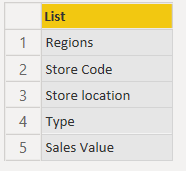
Finally, to achieve the same result for the record column, we will slightly modify the previously written M code.
GetRecordFields = let
                        #"Added Record Fields" = Table.AddColumn(#"Removed Columns", "ColNames", each Record.FieldNames([RecordDetails])),
                        #"Select ColNames" = Table.SelectColumns(#"Added Record Fields",{"ColNames"}),
                        #"Expanded ColNames" = Table.ExpandListColumn(#"Select ColNames", "ColNames"),
                        #"Removed Duplicates" = Table.Distinct(#"Expanded ColNames"),
                        ColNames = #"Removed Duplicates"[ColNames]
                    in
                    ColNames,
#"Expanded DetailsRecord" = Table.ExpandRecordColumn(#"Removed Columns", "RecordDetails", GetRecordFields, GetRecordFields)
in
#"Expanded DetailsRecord"
As we can see, there are only two differences in a code: the first one is that instead of Table.ColumnNames() we are using Record.FieldNames(), and instead of expanding the table column, we are expanding the record column in the last step.
The GetRecordFields variable returns the list of all the record fields available, which can be used to dynamically expand the RecordDetails column.
Wrap up
In the article, we described how to achieve a flexible solution in expanding columns in Power Query. For this purpose, we used a list type of object. The solution works both for the same or different structures of the nested tables (or records). There are multiple ways of solving this problem, but our main goal was to show you that, by knowing Power Query objects such as lists or records, you can achieve more flexible solutions than just by relying on M code written automatically by Power Query. We did not have to write M functions that are not available through the Power Query UI (except Table.ColumnNames() ) or use advanced techniques such as nesting functions inside other functions.
In case you have any questions, please feel free to post them down below!
Works perfectly. Thanks. And so much better explained than the others I've found.
Fantastic!!! For 4 days I tried several alternatives. Your solution works perfectly! Thank you!
Thank you for this post. It is very helpful. I'm finding that it is working fine within Power BI Desktop for refresh, but it is failing within the Scheduled, Cloud Refresh Service. Apparently, the service refresh logic is different than the Power BI Desktop. In the service it is setting the nested [List] values to text...which results in the [List] column being set to "list" and then it spawns an error when that column is referenced. Do you have any experience with this kind of problem? Thanks in advance for your consideration & reply.
Solution With the Changing Table Structures I never suspected I would need such a solution. I now do. It's an excellent one, thank you!
In your post above, the example function only retrieves data from the first record only. How would I retrieve all records' data without having to use the "two arrows" button which only expand to create a static set of columns? I'd appreciate the help here.
Hi Tony, In the last part of the article (Solution With the Changing Table Structures), you can find the approach we used when expanding tables with different structures. Regards
re your video post (dynamic - advanced) -- my approach is described below - not as scaleable -- but doanble in 30 sec and 4 lines of code. let Source = Excel.CurrentWorkbook(){[Name="Table1"]}[Content], Source2 = Excel.CurrentWorkbook(){[Name="Table2"]}[Content], Source3 = Excel.CurrentWorkbook(){[Name="Table3"]}[Content], AppendedQuery = Table.Combine({Source3, Source2, Source}) in AppendedQuery
Gracias por compartir. Muy interesante.
Nice post! Thank you.
This is great...! I am not sure where and when i will use it...yet. But i think i will be needing it in the future... Worth to bookmark! Thanx!
You're welcome!