In this article, we will see how we can use the self-referencing technique and Dataflows to create incremental refresh with PowerBI Pro version. This technique is tested and working both with cloud and on-premises data sources. In case you are using on-premise data sources to access new data, you need to add on-premise source in the Enterprise gateway prior to the creation of dataflows.
Update: We've also created a video explaining this concept in details. You can check the youtube video here.
Self Referencing table
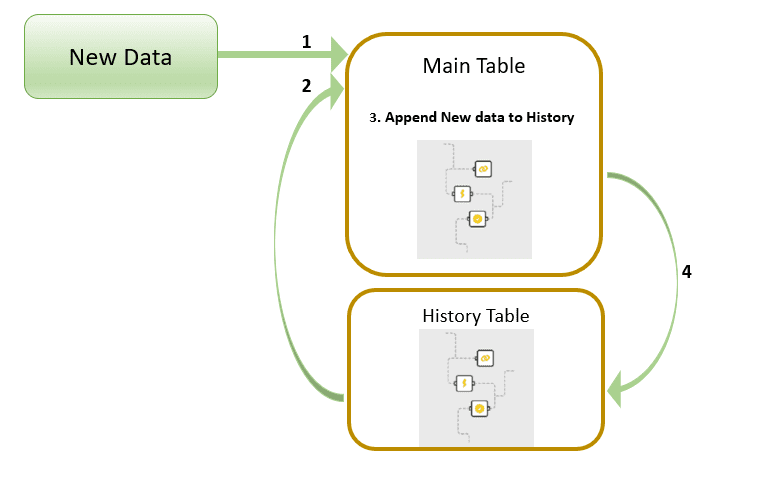
Let's explain, in simple terms, what a self-referencing table is based on the picture below. 
Steps to produce a self-referencing table:
- New Data enters the Main Table,
- History Data also enters the Main Table,
- Notice that History Table in step 4 is fueled from the Main Table, after step 3 is completed (in this step the self-reference is created)
- History and New Data are Appended into a single table,
- If the script of the Main table finishes successfully, History table gets larger for the Appended New Data part.
The process repeats with a refresh. So, for each following refresh, History Table grows to accumulate previous history + new data. The picture above is the key to understanding this article. If you feel lost at some point, come back to this part to thoroughly understand the technique (you can also check the link in the following paragraph).
So, to create a self-referencing table, we need a container for the historical data (History Table). Usually, this is an Excel table that is used to create self-reference applying a technique discussed in the following blog article. Using a similar approach but with dataflow acting as a container is a much better option since we can use an out-of-the-box scheduled refresh to keep our data up to date. In our example, Both Main and History tables are created with Dataflows.
Now let’s see how we can use this approach to create incremental refresh with PowerBI Pro Dataflows.
Solution with dataflows
To keep it simple, we will reproduce an on-premise data source using Excel file saved on our local drive (this could be any online or on-premise data source). Our Excel has only one table containing 3 columns. Date column will be used as a key column for appending new data.

Process:
- Create a Main table inside Dataflows.
- DataFlow Query is: (If you wish to follow along, you need to create a similar table in Excel named Source, save it to your local drive and change the folder location in the source step. You also need to add your Excel location under an on-premise gateway sources).
let
Source = Excel.Workbook(File.Contents("C:UserskresiDesktopTestGatewaytest.xlsx"), null, true),
Navigation = Source{[Item = "Source", Kind = "Table"]}[Data]
in
Navigation

- DataFlow Query is: (If you wish to follow along, you need to create a similar table in Excel named Source, save it to your local drive and change the folder location in the source step. You also need to add your Excel location under an on-premise gateway sources).
- Connect to the Main table Dataflow from PBI desktop using Power BI dataflows Connector (You can also connect directly in Dataflows, although the process is often quite slow).

- Use the M code created in step 2 to create History Dataflow.
- Set History query not to load. This way we will avoid linked entity which is reserved only for premium capacity.

- Use the M code created in step 2 to create History Dataflow.
- Turn the Main table into a self-referencing table.
There are 4 parts in the Main Table query that needs to be modified. Each part is explained in details below.
let Source = Excel.Workbook(File.Contents("C:UserskresiDesktopTestGatewaytest.xlsx"), null, true), 1 Navigation = Source{[Item = "Source", Kind = "Table"]}[Data], NewData = Navigation, 2 AMinDate = List.Min(NewData[Date]), 3 FilteredHistory = Table.SelectRows(History, each [Date] < AMinDate), 4 CombineOldNew = Table.Combine({FilteredHistory, NewData}) in CombineOldNew
-
- Part containing the script to acquire new data. This is the step in which we determine how many days in the past we want to retrieve. This could be, for instance, a SQL statement that returns the last 5 days of sales from a database.
- AMinDate variable containing the first available date of the new data. In case of SQL statement, it will, for each refresh, return the oldest of the last 5 days of sales. This date will be used to filter out history table so that no duplicate values occur.
- Filter History Table based on AMinDate variable. Since we will be running the same script every day, we need to filter out days that are already included in the NewData part of the script. AMinDate variable will help us achieve that. In this step a self-referenced table is created.
- Append NewData to HistoryData.
- Part containing the script to acquire new data. This is the step in which we determine how many days in the past we want to retrieve. This could be, for instance, a SQL statement that returns the last 5 days of sales from a database.
-
After the 4th step, if the refresh is successful, History Table automatically grows to include NewData.
It is important to understand that History query is referencing Main query. Because of that, History is refreshed only after the refresh of the Main Table succeeds. This enables History to automatically grow and include new data after each refresh.
Bringing up-to-date History
If we want to bring full history to dataflows before setting to incremental refresh, we have 2 choices.
- Bring history before the start of an incremental refresh to a separate DataFlow, then append them in PowerQuery (in PBI Desktop).
- Run an up-to-date full DataFlow refresh once (using the script above), then change the 1st part of the script to a shorter timeframe.
After the initial up to date load, we can set each following NewData load to acquire only the last couple of days. AMinData variable will make sure that no duplicate values enter History table prior to append. We should set NewData to load at least the last couple of days, to have time to correct Query in case it fails to refresh. Refresh details in the picture below.

Incremental Refresh based on New ID-s
In case we need to append new data based on the ID column values (not on last available dates), we can use the RightAnti approach to exclude all new IDs in HistoryData. M code below should get you started.
let
Source = Excel.Workbook(File.Contents("C:UserskresiDesktopTestGatewaytest.xlsx"), null, true),
Navigation = Source{[Item = "Source", Kind = "Table"]}[Data],
NewData = Navigation,
AColumnNames = Table.ColumnNames(NewData as table),
MergeQueries = Table.NestedJoin(NewData, {"id"}, History, {"id"}, "History", JoinKind.RightAnti),
RemoveOldColumns = Table.RemoveColumns(MergeQueries, AColumnNames),
ExpandedHistory = Table.ExpandTableColumn(RemoveOldColumns, "History", AColumnNames, AColumnNames),
CombineOldNew = Table.Combine({ExpandedHistory, NewData })
in
CombineOldNew
AColumnNames - list variable containing names of all the columns in a table,
id – name of the column which holds unique IDs that need to be added,
RighAnti will remove all IDs from HistoryTable that are already available in the new data.
Hope these techniques will help you ease the burden on the on-premise sources when refreshing data. It can also be useful to save history data in case of accessing APIs with limited API calls.
In case of any questions, please ask. If you enjoyed reading through the article, please like/share!
Hi there, For me, the history table is fetching new data during refresh. It only contains new data instead of new plus old data. Am I doing something incorrectly? Thanks, Mahesh
Hi, Thanks for this great article. We have tried the approach and works well, however facing some trouble while bringing up-to-date History part and the dataflow is losing the historical data stored. Can u help with some detailed instruction for the choices available in getting the historical data from a source and make it a self-growing entity.
Hi , I am getting error A cyclic reference was encountered during evaluation. What can I do ?
I am getting errorWe cannot convert a value of type Table to type List.,Table.Combine(History, New) command
Hi Kresimir, Thanks for the writing this blog post. I have followed the above approach and implemented incremental refresh successfully. I have a question on below point: "Run an up-to-date full DataFlow refresh once (using the script above), then change the 1st part of the script to a shorter timeframe." I ran into a problem while loading the full historic data for the first time and change the source query before subsequent runs. For the first time, I loaded all the historical data by applying no filter in source query, then in next run, I changed the query extract the data from last on hour(applied a filter in source query) and hit save and close. In the next run, the dataflow erased all the historical data and loaded the data of last on hour. Can you please share thoughts on this? Thanks in advance! Regards
Hi Sukumar, It's been a while since this blog post was published. There might be some changes in the DF execution behavior on script changes. You can still use the 1st approach of keeping the history data in a separate DF, then append in PBI.
Hi Krešimir, I've been redoing the whole step thrice just so to have it running. My datasource is SQL dataflow using privacy set at Organisational Level. But while refreshing the entity I keep getting same error:" Error: Privacy settings don't allow the combining of data from multiple sources in the same query. \n\r To refresh this dataflow you can either edit the queries or you can allow combining data from multiple sources in the Edit queries Options settings" Please comment as I want same like yours with history and new data in Pro License.
Hi, have you tried to check "Allow combining data from multiple sources in the Edit queries Options settings". It's available under DataFlow options. Or you can take a look at our video for a more detailed explanation.
Thank you so much for replying ..you are a savior truly . Yes I have left that unticked. But then I realised that the data value in my case that changes /overwrites is the status as shown and not exactly the date_invoice , will your soultion still do the magic ??
The solution is independent of the type of "New data", as long as you can clearly define what is the key being used. It can be date, any incremental value, or any key that you define that can be used as a filter.
Hi Kresimir , Since I couldn't attach a picture, I will try to replicate my data. Date Created ID Status Amount 10.02.2020 a Pending 50 11.02.2020 b Approved 60 12.03.2020 c Pending 34 Here I have four field, the goal is to track which ID remained in particular status before it changes its status. For eg: ID a is pending for now , but some time later it will change its status to approved in which the status field gets overwritten. Rest fields data remains unchanged. let Source = Sql.Database("ababab", "convert123"), Navigation = Source{[Schema = "dbo", Item = "table"]}[Data], New = Navigation, AMinDate = List.Min(New[status]), FilteredHistory = Table.SelectRows(History, each [status] <> AMinDate), CombineOldNew = Table.Combine({FilteredHistory, New}) in CombineOldNew
You could create increments based on the date column, then use the status column as a filter to check when the status changes. This technique won't address later changes to the status, once the dates are stored in the history table.
wonderfull solution :)
I am getting the error : A cyclic reference was encountered during evaluation. I am using the same code on Dataflow. Could you help with suggestions?
Hi, could you please provide more details? There is also a video about the same topic on our youtube channel that can help check if all the steps were properly created.
Great post! I have it somewhat working but for some reason it is not appending the data to the history table as you show. My sources are slightly different, my Main table is an API call I am doing to get current data, this API only returns data as of that call, in my case the data updates hourly. For the historical data I created an Excel and hosted it on a SharePoint site with some initial historical data. I was hoping that using your method it would update the historical excel file with the appended hourly data being called from the API but it is not. Could the issue be with my sources? https://uploads.disquscdn.com/images/260fb21b74347638741f95c023b92bfcb5f2ff5b15af327a8f81948c5d1a535d.jpg https://uploads.disquscdn.com/images/f3e235d1c8910d3bfea1cbc3b6af40f841e78160ea353ac98c78edccd5787b1c.jpg
Hi a_gonz. Thank you! From what I've understood, you are trying to update Excel file with history data through DataFlow? I'm afraid that is currently not possible. You should keep both history and new data tables inside of a single instance of Dataflow, so that you can utilize DataFlow as a container for the historical data. Or you can keep all the arhitecture in Excel using an Excel table as a container for historical data. In that case you should create a self-referencing table in Excel. You can find more info on the following link: https://exceleratorbi.com.a...
Thanks for the response Kresimir, I loaded the Excel to the same DataFlow instance and it is working in the sense that the new data set is being appended with the historic data, however, the step that seems to not be happening is when the we need to append back the new data to the history. So the history data is not automatically growing. I also attempted to not use an Excel and create a duplicate of my API source, however the same is happening and the history table is not growing. Whenever I refresh the DataFlow the history table is also refreshing with only the latest dataset being provided by the API. Is there something else I should be looking at that I can be missing, it seems that the step 4 is not happening as it should.
Hi a_gonz, sorry for the late reply. We were migrating the website to a new host and lost access to all Disqus comments. If you could provide more details about the M code and the structure of your dataflow than I could suggest more options. You can also try to watch our video explaining this topic in detail (link at the beginning of the article).
Very nice post - thanks a lot. It works super for me. The problem i had is that the "History" table is not visible in through PowerBI Desktop as it is disabled form loading. I had to create the "Data" table which basically copies history in order to make this work. https://uploads.disquscdn.com/images/69bacba3e97a7e3dcc1ef5662a979f201f48f4f8f49726eea81a7a9e7d643510.jpg
Thank you! You don't have to connect to the history table once it is uploaded to the Dataflow. The main query is the one that is actually holding the data (both historical and new).
Pozdrav Krešo, odličan tekst, sve pohvale. Problem koji sam imao prije cca dva mjeseca, kad sam primjenio navedenu tehniku je da tako kreirane tabele (osvježene) u dataflow-u nisu bile više dostupne (vidljive) u pokušaju dohvaćanja kroz Get Data u PBI Desktopu. Da li ste se sreli s navedenim problemom, ili ima neka posebna kvaka? Lp Tomislav
Pozdrav Tomislave, Hvala, drago mi je da Vam se sviđa članak! Moram priznati da nisam. Za nove podatke, da li koristite on-premise gataway ili je izvor u cloudu? Za ovu tehniku trebaju Vam proći dva osvježavanja dataflowa. 1. kod izrade osnovne tablice na koju se spajate preko PBI desktopa, i drugo koje nastaje nakon spajanja History i novih podataka. Znalo mi se desiti da kod spremanja dataflowa dobijem grešku da nije moguće spremiti dataflow jer već postoji isti otvoren (zapravo se radi o Bug-u unutar dataflow, pa se treba ponoviti ispočetka procedura), no ako se DF spremi i refresh(ili schedule refresh) prođe u redu, dataflow je uvijek bio vidljiv i spreman za daljnju manipulaciju s ostalom alatima, uključujući PBI desktop. Jedino što mi pada na pamet zašto se ne vidi DF (ako je refresh prošao), je da treba provjeriti da li su dobro postavljeni Data source Credentials od DF u PBI desktopu. Zanimljivo, ali nisu isti kao i credentials od Web servisa, tako da možete biti spojeni na PBI web servis s jednim klijentom(tennant-om) (xy@prviklijent.hr), a povlačiti Dataflow od drugog klijenta (xy@drugiklijent.hr). Lp,Krešimir
Sve navedeno sam probao, u svim mogućim scenarijima, ali sam zaboravio napomenuti da su od trenutka kreiranja DF, otprilike 24 sata svi DF entiteti bili vidljivi iz PBI Desktopa i radili kao što je opisano u članku, da bi kasnije prestali funkcionirati i biti vidljivi u PBI Desktopu?! Nakon ove epizode odlučio sam pričekati Incremental refresh u Pro licenci (najavljen za 4.mjesec ove godine).
Čudno, ja imam nekih 5,6 ovakvih DF koje koristim za spajanje na API i lijepljenje trenutnih podataka na povijesne (zbog ograničenja callova u API-ju). Niti jedan mi do sad nije puknuo ili da nije bilo moguće povezati se na njega iz PBI desktopa. Istina, niti jedan ne sprema veliku količinu podataka u DF (najveći history je sad velik cca 20k redova). Možda time-outa s velikim količinama podataka (nisam testirao), pa bi mi dobro došla informacija o kojim količinama podataka se radi kod vas. Incremental refreshu se jako radujem!
Ovdje je bilo 2,6 miliona redova, izvori su bili MySQL baza i Azure Blob. Pitanje, znam da je napomena Zelensky-og bila da incremental radi samo ako izvori ne zahtjevaju on-premises gateway. Spajanja koja ste radili su sva bili s API-jevima ili i s lokalnim datotekama kao u tekst članka?
Testirano je i sa spajanjem na lokalnu .xlsx datoteku/SQL server preko enterprise gateway-a, i sve je radilo ok.
Možete napraviti video s primjerom iz članka? Probao sam ovo napraviti s MySql bazom, preko gateway-a i ne radi mi. Očito nešto radim krivo
Može naravno, ako će to učiniti članak razumljivijim, napravim čim ulovim malo vremena.
Odlično hvala
Pozdrav Tomislav, je malo kasno ali htjeli smo napraviti video kako spada. stavio sam ga na Youtube pa slobodno baci pogled da vidiš da li ti sad funkcionira s MySQL i Azurom.
Pozdrav, hvala za video, bio sam toliko slobodan da ga podijelim na linkedin-u. Za MySql sam na kraju otišao na drugo rješenje, sve je prebaćeno na Azure Sql bazu, tako da ne treba gateway, ima query folding, a i incremental je podržan bez posebnih zahvata.
Za veće količine podataka i ukoliko vam arhitektura to dopušta, vaše rješenje je sigurno robusnije od ovdje navedenog. hvala za komentar.