
In this blog, we will see how to merge two tables in Power Query based on key column and a date range. Merging with multiple matching columns is straightforward and can be achieved in Power Query by selecting merge queries option and holding CTRL key when choosing matching columns like in the picture below:
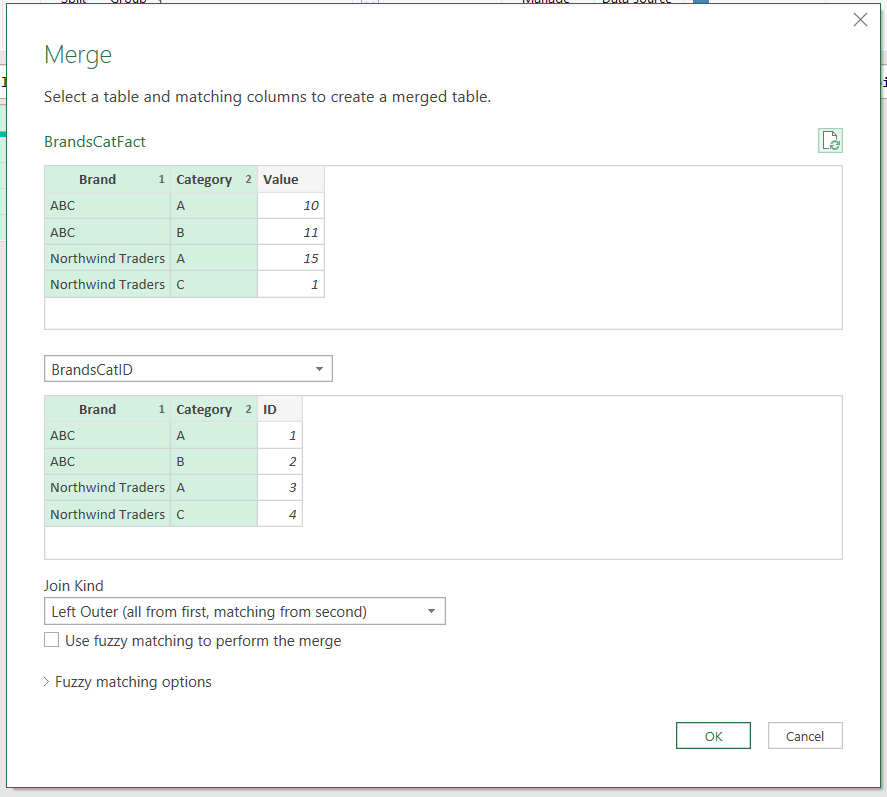
In the picture above, we are merging two tables based on matching columns: Brand and Category. In this case, both Brand and Category must be an exact match. What we want to observe is a different problem, i.e. merging based on one matching column and a range of values from another column (in this example a range of dates).
Merging Based on a Range of Values
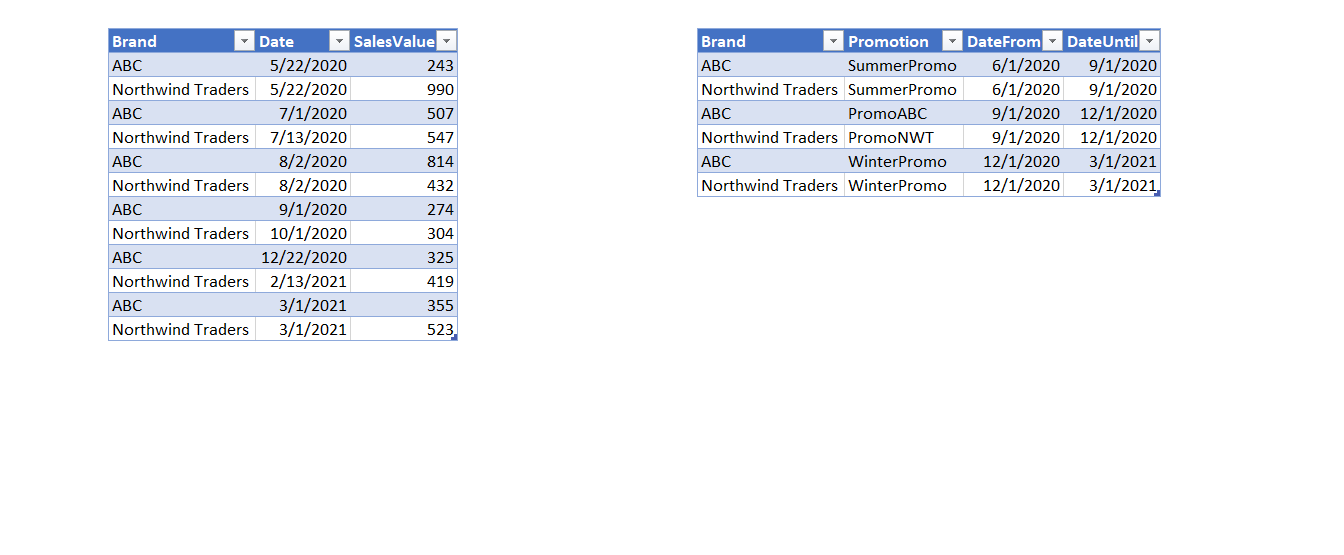
In the picture above, we can see two tables we want to merge – Sales and Promotions. We want to get the Promotion column in the Sales table. The merge requires a match on the Brand column, but we also want to take into account the date range in which the promotion happened. The date range is given in the Promotions table with DateFrom as the lower boundary and DateUntil as the upper boundary.
For example, the date of the first row of the Sales table is May 22nd, and in this period there was no promotion. In the third row, we have July 1st, which is inside the SummerPromo (between 6/1/2020 and 9/1/2020).
In order to merge tables correctly, we need to use Brand and Date columns from the Sales table, and Brand, DateFrom and DateUntil columns from the Promotions table. To solve this problem, we will use nested environments and the full syntax of the “each“ keyword. In case you are not familiar with these topics, check out this blog in which we covered those topics in more detail.
The Solution – Custom Column with Table.SelectRows() function
We cannot use the standard merge option (Table.NestedJoin() function) as a solution for the problem since the Date column is not the exact (or even approximate) match of DateUntil or DateFrom. The Date column must be after or equal to DateFrom, and before or equal to DateUntil. Along with this, the Brand column of the Sales table must be an exact match to the Promotions Brand column. One way to solve this problem is to add a custom column that will use Table.SelectRows() function. This means combining Table.AddColumn() and Table.SelectRows(), which are both iterative functions. Table.AddColumn() is used to add a column to the Sales table that contains matching rows from the Promotions table. Table.SelectRows() is used to filter the Promotions table to select only the matching rows for each row in the Sales table.
Below, we will try to add a custom column and write an M code with the “each” syntax to get the rows from Promotions into the Sales:
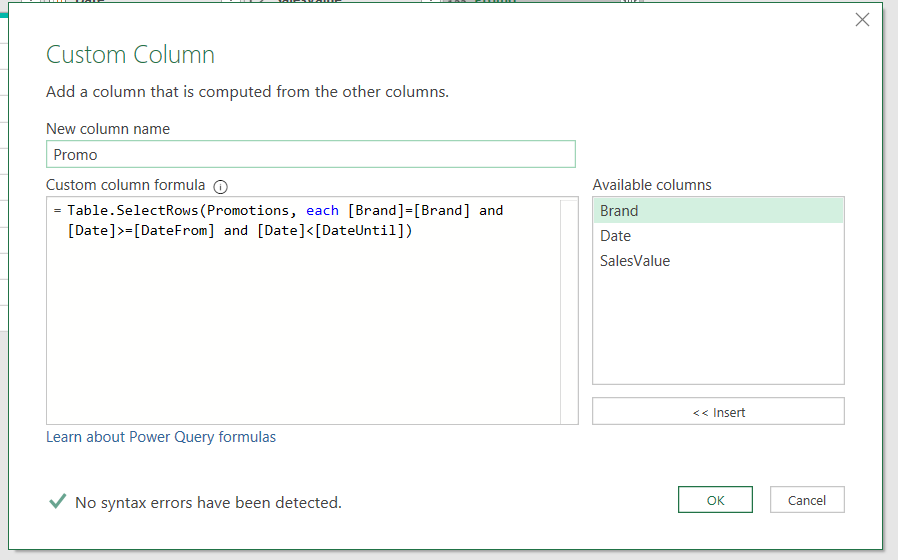
#"Added Custom" =
Table.AddColumn(Sales, "Promo",
                each Table.SelectRows(Promotions,
                                      each [Brand]=[Brand] and [Date]>=[DateFrom] and [Date]<[DateUntil]
                                     )
                )
In this step, we added the column in the Sales table with all 3 conditions (Brand from Sales equal Brand from Promotions, Date>=DateFrom and Date<=DateUntil).
When we hit enter, we get the nested tables, but inside the tables we get an error:
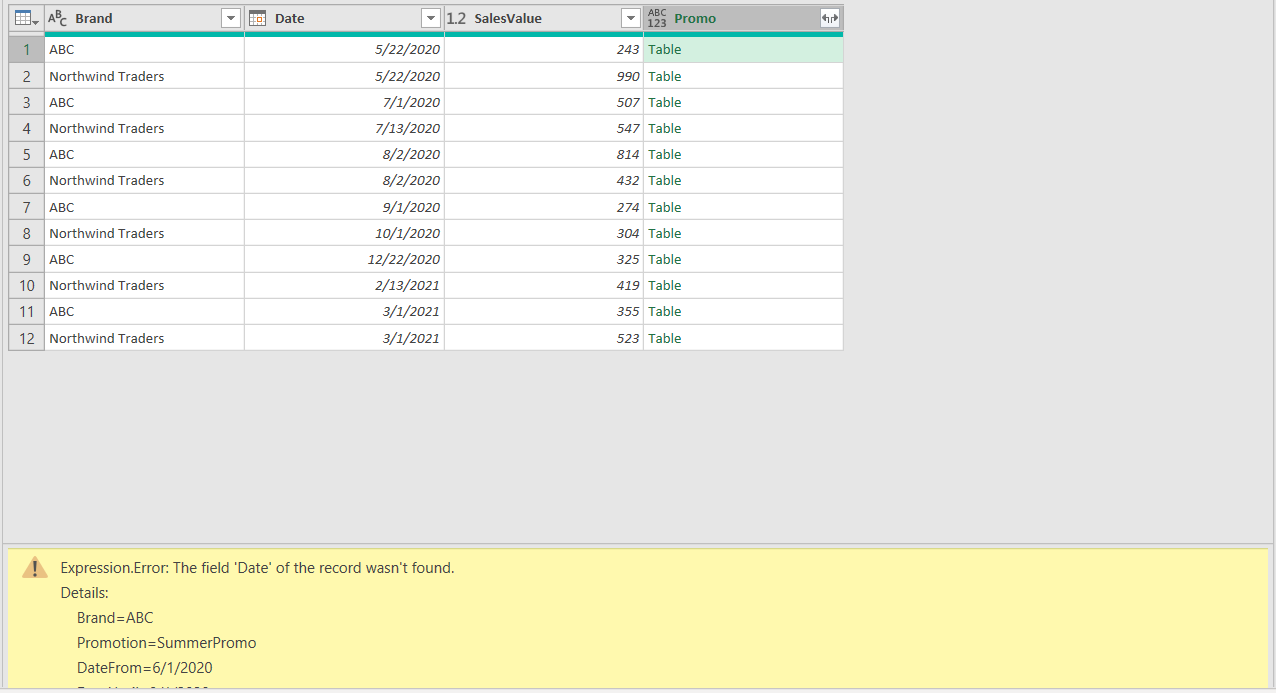
The error states that the Date field of the record was not found. As seen from the picture, Date column clearly exists. What is the problem then?
Each Keyword Debugging
If we observe the Added Custom step, we can see that the “each” keyword appears multiple times. If we write the full syntax instead of sugar syntax and replace each with a variable named X (you can find more on each syntax here), we get the following M code:
#"Added Custom" =
Table.AddColumn(Sales, "Promo",
               (X)=>  Table.SelectRows(Promotions,
                                       (X)=> X[Brand]= X[Brand] and X[Date]>= X[DateFrom] and X[Date]<X[DateUntil]
                                       )
               )
Since each is a sugar syntax for an unnamed variable, in the full syntax we introduced a variable called X. Because the variable X is introduced two times, we have X in front of all the columns inside the inner iteration (Table.SelectRows() function). Inside the inner environment (Table.SelectRows() function), X refers to the Promotions table, which is the first argument of the Table.SelectRows() function. Inside the Promotions table, there is no Date column. The error states exactly that.
If we use the full syntax, we can introduce 2 different variables, one called S (the outer variable, S stand for Sales) and P (the inner variable, P stands for Promotions).
#"Added Custom" =
Table.AddColumn(Sales, "Promo",
               (S)=>  Table.SelectRows(Promotions,
                                      (P)=> P[Brand]= S[Brand] and S[Date]>= P[DateFrom] and S[Date]<P[DateUntil]
                                      )
                )
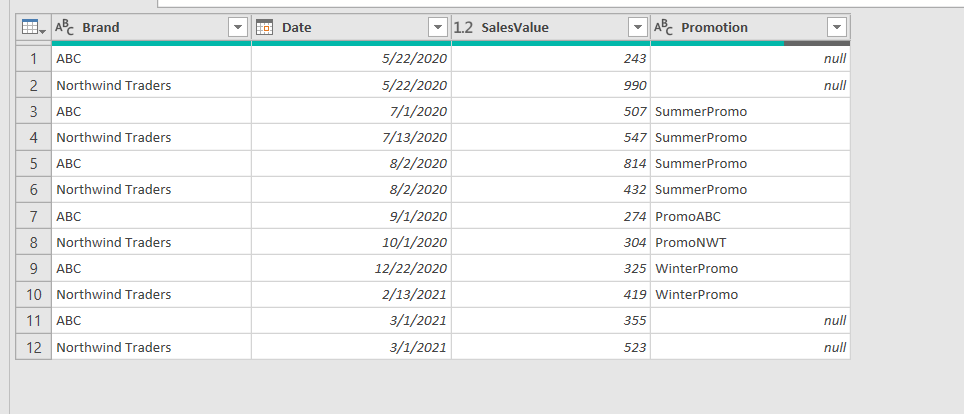
By using the full syntax of each keyword, we introduced two different variables, referring to two different environments. In this way, for each row of the Sales table, we get nested tables with matching rows from the Promotions table. When we expand the Promotion column, we get the correct final result:
Performance Optimisation
Since we are doing nested iterations, when working with large tables, we can encounter performance issues. For optimizing the load speed of the query, we can use Table.Buffer() function prior to “merge” to buffer the inner table (Promotions). The full M code for this solutions is given below:
let
    BufferedPromotions = Table.Buffer(Promotions),
    Merge = Table.AddColumn(Sales, "Promo",
                            (S)=>  Table.SelectRows(BufferedPromotions,
                                                    (P)=> P[Brand]= S[Brand] and S[Date]>= P[DateFrom] and S[Date]<P[DateUntil])
                           ),
    #"Expanded Promo" = Table.ExpandTableColumn(Merge, "Promo", {"Promotion"}, {"Promotion"}),
    #"Changed Type1" = Table.TransformColumnTypes(#"Expanded Promo",{{"Promotion", type text}})
in
    #"Changed Type1"
Hope you enjoyed reading through this article. In case you have any questions, please post them below!