In this article, we will explain an advanced topic about the M language - using List.Generate to loop over a table. We will combine our knowledge of lists, records, functions, iterations, and looping techniques. Basically, every important object in PowerQuery.
Do-while Loop in PowerQuery
Do while loop is commonly used in object programming. The idea is to create a loop that is being executed until it reaches a certain condition. The following is a simple VBA code representation.
X=1
Do while X < 10
X=X+1
Range("A" & X ).Value = X
Loop
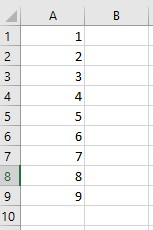
If we execute this code in Excel, we will receive the following list of values. The code iterated through X values until it reached value 10. In that step, the condition in do-while row evaluated to false therefore aborting further iterations.
While looping is used regularly in object programming, in functional programming (which M is a part of), looping is not so easy to implement nor to understand. Nevertheless, there are techniques to implement recursive or looping functions, and using a List.Generate() function is one of them.
Note to mention: these techniques, due to their iterative nature, tend to become very slow on large datasets or many iterations. Since PowerQuery is not optimized for those operations, you should rely on them only as a last available option.
That does not mean you should never use them, because they are extremely powerful if used properly.
How to Create Looping in PowerQuery and General Use
The general use of these functions is in dynamic outputs, where we do not know how many times our function should iterate to collect all the data.
Use cases:
- API-s with previous/next page structure,
- API-s with a limited number of concurrent calls,
- Web pages with pagination,
- Other structures in which we are unaware of the definite number of iterations.
Mostly used techniques to create iterations are:
- Recursive technique
- List.Generate() function
- List.Accumulate() function
Recursive Technique
The recursive technique is using @ sign to access the same function from itself until it reaches a certain criterion. A simple representation is given below. The function is receiving only one argument, X, and is calling itself in the else argument of if statement (the @Function keyword).
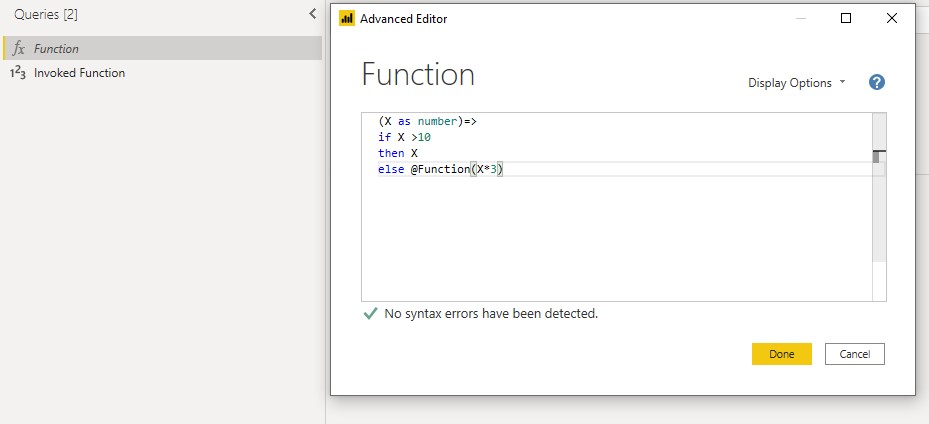
If we feed this function with a number 1, it will produce 4 iterations.
1st iteration
- X that is entering function=1 which, is lower than 10, so the function will start again, receiving number 1 and multiplying it by 3. (row with else keyword)
2nd iteration
- X that is entering function =3, which is lower than 10, so the function will start again, receiving number 3 and multiplying it by 3. (row with else keyword)
3rd iteration
- X that is entering function =9, which is lower than 10, so the function will start again, receiving number 9 and multiplying it by 3. (row with else keyword)
4th iteration
- X that is entering function =27 which is higher than 10. At this step the condition is evaluated to true and the X (27) is returned as an output of the function. (then X row)
This is how we can introduce recursion manually with an @ sign. There are also certain M functions that can give us a framework for looping. Those are List.Accumulate() and List.Generate().
List.Generate()
In this topic we will talk about List.Generate(). First, let’s see what are the advantages of using this function against the classic recursion with @ sign.
- Better readability and given framework
- Better performance
- Unlimited call stacks
What does it mean to have unlimited call stacks?
While doing recursions, each additional iteration is added to the total stack of all iterations. This stack cannot grow unlimited in size, so at a certain point, the stack will become full and the procedure will stop. This is what can happen with classic @ recursion, but with List.Generate() you are only limited by your computer memory. So, with List.Generate() you do not need to worry about the call stacks which can potentially stop the execution of your query.
Business Case Used to Explain the Function
We will explain this function on a simple example with an Excel file (you can also find the final Excel solution here). In it, we have multiple sheets, each with the structure like in the picture below.
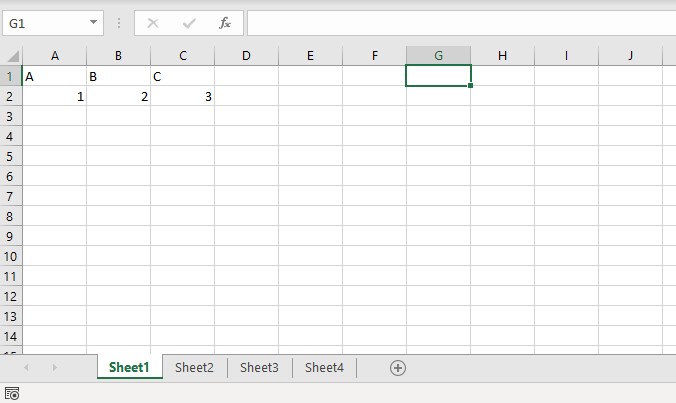
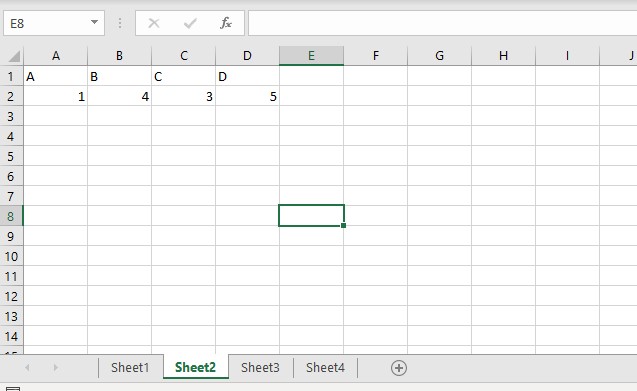
We want to transpose values on each sheet and append them one below the other. This Excel will grow in size and new sheets will be added in appropriate order form 1 to x. We want to iterate through those sheets and apply our function until we reach the non-existing sheet in the Excel file (in our example that would be sheet5).
This task is only for demonstration purposes and I know that there are many better ways of handling this query. But once you understand this function thoroughly you can use it to solve real business cases mentioned at the begging of the article.
This is in general a great example of M coding, since in it we will use both list and record types of M objects, and each keyword, which is a sugar syntax for a simple function which accepts the current row as an argument! We also have an iteration, so with this example we will cover most of the advanced M coding!
In case you feel insecure about using records, lists and each keyword, please revise those fields before continuing with this lecture.
Building Blocks of the Final Solution
Now we will go through all the objects we will use to form the final solution with List.Generate() function.
Function Used to Transform Each Excel Sheet
We will use the following function to unpivot each sheet in a workbook.
(InputNumber)=>
let
Source = Excel.Workbook(File.Contents("C:\Generate\Source.xlsx"), null, true), //Fixed path to the file
SheetToTransform = Source{[Item="Sheet"& Number.ToText(InputNumber),Kind="Sheet"]}[Data], //InputNumber variable will concatenate with text Sheet to form the Sheet reference
#"Transposed Table" = Table.Transpose(SheetToTransform) //Table transposing
in
#"Transposed Table"
At the moment, we should focus solely on the SheetToTransform step, in which we are injecting the InputNumber variable to perform concatenation with the Sheet keyword. On each iteration, this number will increment by 1. The First 3 iterations are presented below.
- SheetToTransform = Source{[Item=“Sheet1”,Kind=“Sheet”]}[Data],
- SheetToTransform = Source{[Item=“Sheet2”,Kind=“Sheet”]}[Data],
- SheetToTransform = Source{[Item=“Sheet3”,Kind=“Sheet”]}[Data],
- ….
The idea is to iterate this function until it reaches a non-existing sheet. In our example that would be Sheet5. After it reaches Sheet5, the function should evaluate to false, resulting in exiting from the iterations and retrieving all the tables from previous successful steps of execution.
This is where List.Generate() comes in as a building block for this solution.
List.Generate() Overview
First, let’s get familiar with the syntax of the function.
List.Generate( initial, Starting position of the function condition, Condition evaluated for each iteration next, Next row in a list optional selector) if the condition is evaluated to true, take that result and do something additional with it.
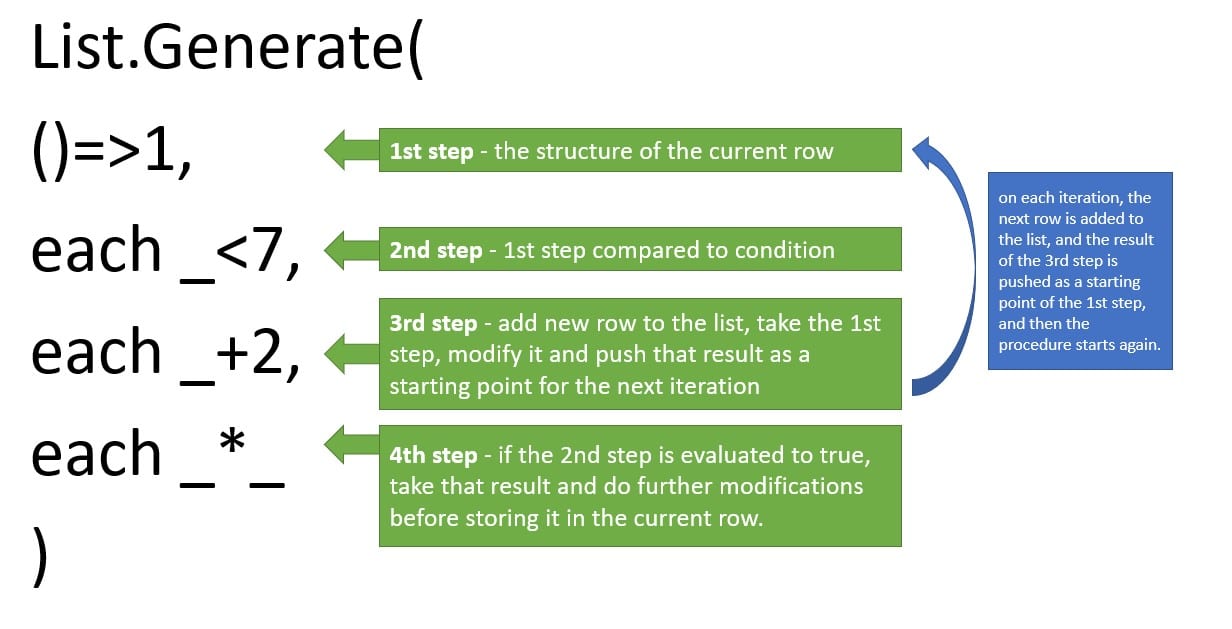
For me, it was hard to grasp what each of these parameters means until I started to think in the M row context. The most important part to understand is that the List.Generate() is an iterative function, meaning that it produces a so-called row context. In that row context, in each iteration, there are always 2 rows present, the current row and the next row. We will demonstrate this with a simple List.Generate() function.
List.Generate(
()=>1,
each _<7, each _+2,
each _*_
)
If we run an expression like the one above, we will receive the following list. What follows is the explanation of the execution steps.
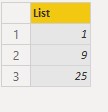
()=>1
This is the initial state before the function starts iterating and creating a list. ()=> is a syntax of a function definition, meaning that List.Generate() only accepts functions as parameters. 1 is the starting input that will change in each iteration based on the 3rd argument. Besides scalars like numbers or text, starting input can also be in the form of structured objects, like tables, lists, or records (more on that in the following example). The result of this argument (in the form of a current row) is going to be used within all the other arguments of the List.Generate() function. We will access this value with the underscore (_) symbol.
each _<7,
as we can see, the keyword each is present in all other parameters of the function. Each is a sugar syntax for an unnamed variable that is holding the current row in an iteration. The following line could be written as (_)=>_<7 Where underscore represents the row from the current iteration of the list (the initial state). This argument is taking the initial state of the current iteration, and then does the comparison with the condition, if the condition is true, it stores that result in the current row of the list or pushes it to the optional 4th argument for further processing. If the condition evaluates to false, then the function execution stops and returns everything that was stored up until the last iteration that resulted in false.
each _+2,
This is where it starts to become interesting. This argument is creating an additional (next) row in the list, then pushes the result of its evaluation as the 1st argument in the next row iteration. At the moment the result is pushed to the 1st argument, the iteration starts again and the condition part kicks in checking how the next row result evaluates against the condition. In this process, looping occurs until the condition is evaluated to false.
each *
(Optional argument) If the condition in the 2nd argument of the current iteration is evaluated to true, that result is pushed to the last optional argument for further processing. In case we omit the last argument, then the result of the 2nd argument is left as is in the current row of the list.
I’m not sure when PowerQuery engine internally evaluates the 4th argument (inside each iteration or after the list is created), but I believe this is irrelevant to understanding the function principles.
The order of the execution is as follows.
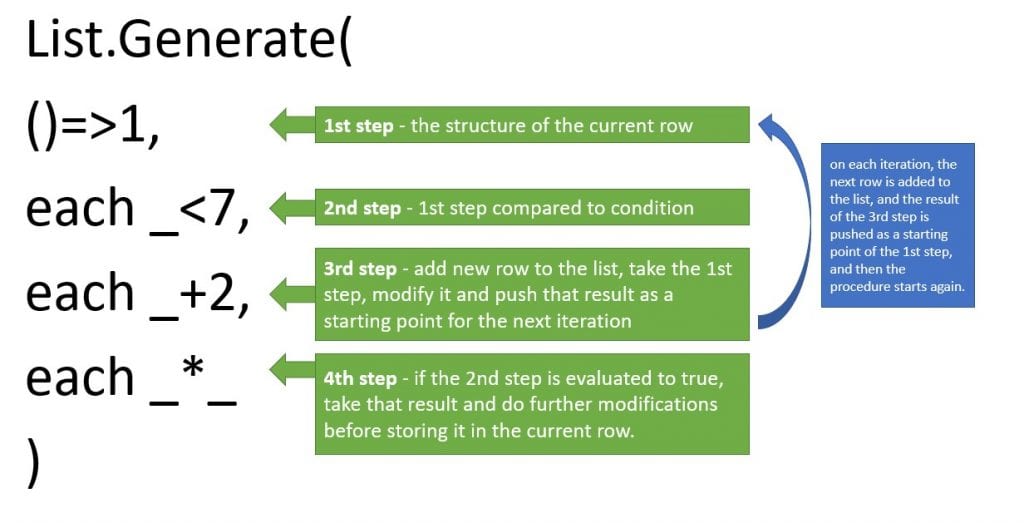
If we apply that to our list, this is what is happening in each iteration. We replaced _ (underscore) with red numbers to emphasize what is happening in each iteration.
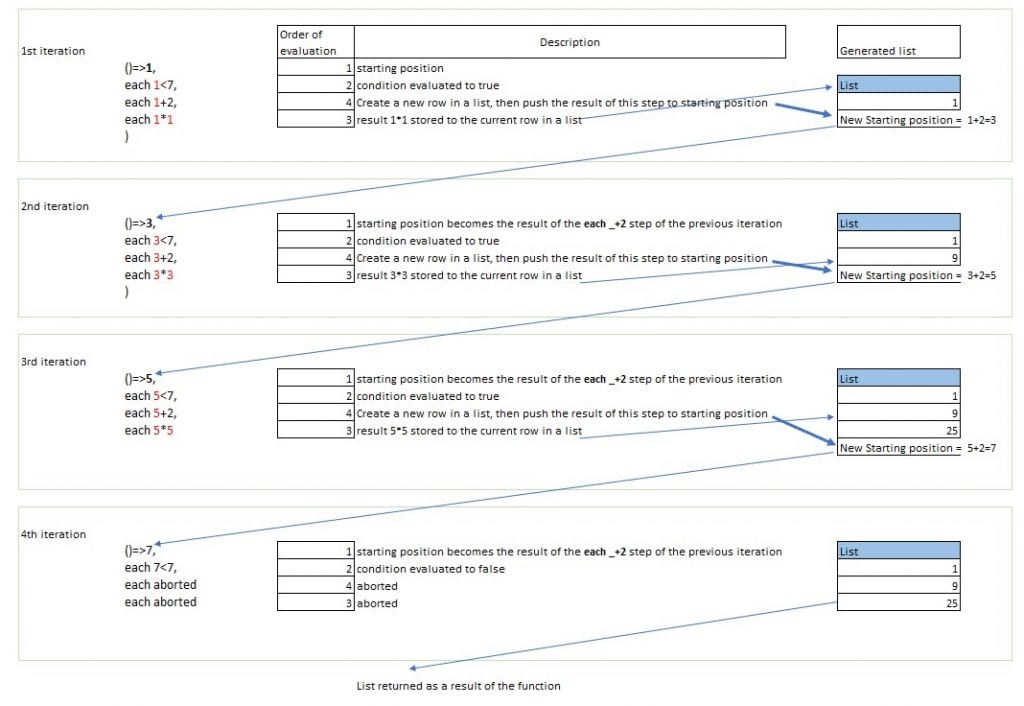
- As we can see, the initial state (starting position) is always entering the functions and remains stable for the duration of the current iteration.
- For the first iteration, the starting position is the one that we explicitly gave as the first argument of the List.Generate() function.
- In the second iterations, the initial state is altered by the next row expression (3rd argument), then the loop starts again.
- As the function is looping, it is generating the List output as shown on the right side of the picture.
- In the last iteration, the starting position becomes 7, which in the second argument evaluates to false, therefore aborting further iterations and returning the list as it was in the previous step of execution.
List.Generate() Implementation With an Excel File
Now that we have become acquainted with the List.Generate() function, let’s see how we can utilize it to perform the task from the beginning of the article.
So, we have an unknown number of sheets that we need to transform and we wish to use the List.Generate() function to store all transformed sheets until we hit a non-existing one. After that, the function should stop and return the transformed tables in the form of nested tables inside of a list.
We know the function we will use from the beginning of the article.
(InputNumber)=>
let
Source = Excel.Workbook(File.Contents("C:\Generate\Source.xlsx"), null, true), //Fixed path to the file
SheetToTransform = Source{[Item="Sheet"& Number.ToText(InputNumber),Kind="Sheet"]}[Data], //InputNumber variable will concatenate with text Sheet to form the Sheet reference
#"Transposed Table" = Table.Transpose(SheetToTransform) //Table transposing
in
#"Transposed Table"
Now, let’s observe how to implement the solution to dynamic number of sheets with List.Generate().
M Code of the solution
let
Source =List.Generate(
()=>[Sheet=1,Funct=FXSheet(1)],
each (try [Funct])[HasError]=false,
each [Sheet=[Sheet]+1,Funct=FXSheet([Sheet]+1)]),
#"Converted to Table" = Table.FromList(Source, Splitter.SplitByNothing(), null, null, ExtraValues.Error),
#"Expanded Column1" = Table.ExpandRecordColumn(#"Converted to Table", "Column1", {"Sheet", "Funct"}, {"Sheet", "Funct"}),
#"Expanded Funct" = Table.ExpandTableColumn(#"Expanded Column1", "Funct", {"Column1", "Column2"}, {"Column1", "Column2"})
in
#"Expanded Funct"
Let’s focus on the first step in the query which consists of the List.Generate() function. Now, let’s explain each argument of the function.
()=>[Sheet=1,Funct=FXSheet(1)]
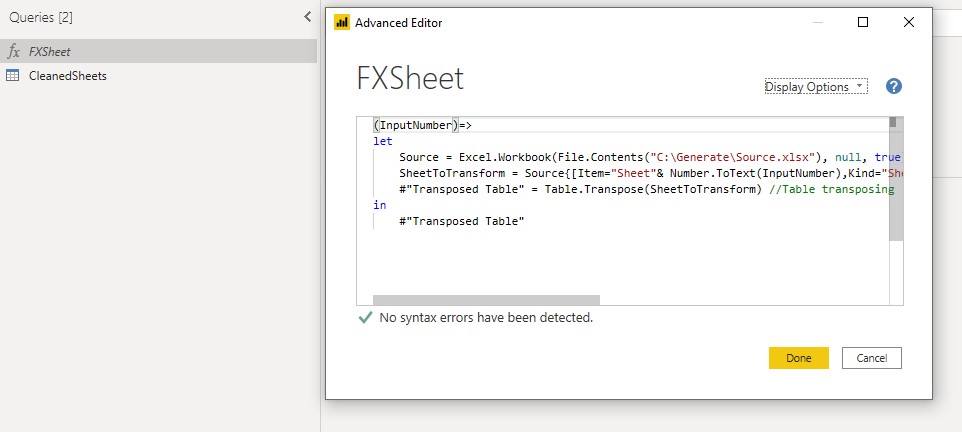
As we mentioned earlier, initial state can be any scalar value, or structured type of object like tables, records or lists. In our case, we are using the square brackets syntax to create a record type object holding 2 columns named Sheet and Funct. Sheet column has the starting value of 1, and the Funct column starting value is a function invoke with an argument of 1. FXSheet is the name of our manually created function, as shown in the picture below.
each (try [Funct])[HasError]=false
This step is taking the record from the initial state and checking if the FXSheet() function that is stored in a column named [Funct] is returning an error in the current iteration step. If the function is returning an error then stop the execution, else continue with the next argument.
each [Sheet=[Sheet]+1,Funct=FXSheet([Sheet]+1)])
If the condition (try [Funct])[HasError]=false is evaluated to true, then add a new row to the list, and set the initial state of that row to the following expression. We again create a record type of object. For sheet column, we set new initial state to be the current row [Sheet] column value + 1, and for the Funct column we set new initial state to be FXSheet([Sheet]+1). So, the initial states will change with each iteration as follows.
Iteration Initial step
- [Sheet=1,Funct=FXSheet(1)]
- [Sheet=2,Funct=FXSheet(2)]
- [Sheet=3,Funct=FXSheet(3)]
- [Sheet=4,Funct=FXSheet(4)]
- [Sheet=5,Funct=FXSheet(5)]
At the 5th iteration, the condition will evaluate to false (since in our Excel file we only have sheets up to sheet 4), so the function will exit and we will receive a list containing nested records.
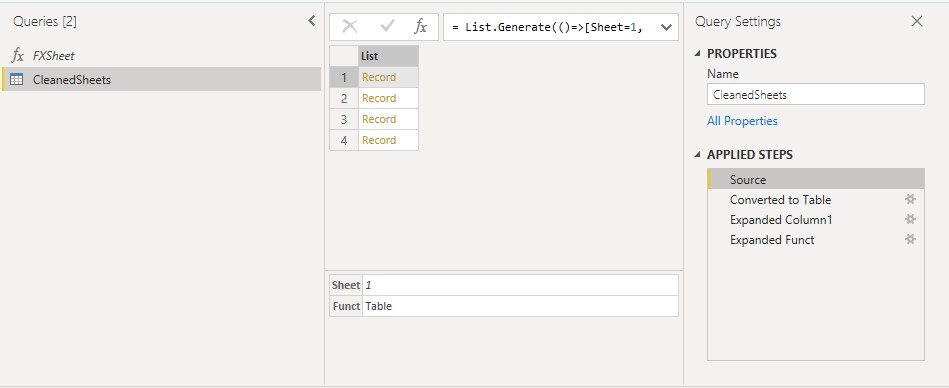
Each record will have 2 columns, column Sheet with the sheet number, and column Funct with nested table as the result of the invoked function over the current row.
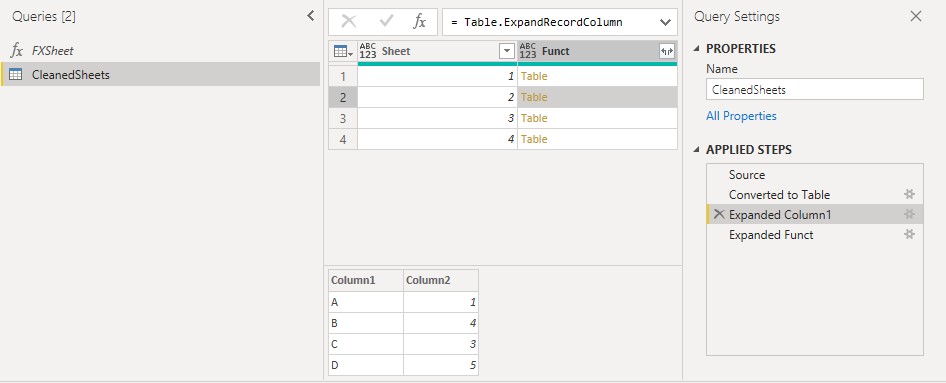
After we expand the record, we can see that each row has its transposed table as a result of invoking FXSheet() function.
Using the Forth Argument to Further Transform Results of the Function
In this example we omitted the last argument, therefore returning the whole record of the current row after it evaluated to true. In case we wanted to further process the result of the evaluation, we could use the 4th argument.
For example, if we needed only column1 from nested tables, and we also wanted an additional column with the sheet number multiplied with an outer variable, we could write the 4th argument as follows.
let
Source =List.Generate(()=>[Sheet=1,Funct=FXSheet(1)],
each (try [Funct])[HasError]=false,
each [Sheet=[Sheet]+1,Funct=FXSheet([Sheet]+1)],
each [NestedList=[Funct][Column1],Multiplication=[Sheet]*OuterVariable]),
#"Converted to Table" = Table.FromList(Source, Splitter.SplitByNothing(), null, null, ExtraValues.Error)
In
#"Converted to Table"
As a result, we will receive a list holding nested records. Each record is holding 2 columns named NestedList and Multiplication.
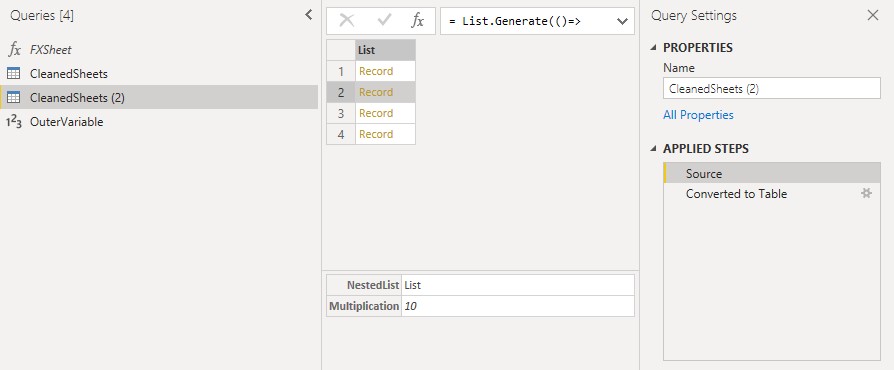
NestedList is taking just Column1 from the table output, while the Multiplication column is combining the result of iteration with the OuterVariable (yes, that is possible!) to produce the final output. The last one is bringing even more juice to the function, so the applications and business problems you can solve with the use of List.Generate() are numerous.
Just remember that you must use it with caution since it tends to become slow if used incorrectly. In certain situations (like with nested List.Generate()) you can utilize the List.Buffer() function to significantly increase the overall execution speed, but that won’t help much in case there are too many iterations or the dataset is simply to complex. And try to avoid nested List.Generate() if possible.
In case you have any questions, please feel free to post them down below!
What if we don't know the name of the sheets?
Excel.Workbook() gives a table with sheet names. I would dig for solution in this way
I realise this is really old, but I imagine someone else may need a similar solution. :) You can reference the objects by their index if necessary. IE. Each sheet is workbook{0} to workbook{n} Binary = File.Contents("path"), Workbook = Excel.Workbook(Binary), SheetsOnly = Table.Select(Workbook, each [Kind] = "Sheet"), // Removes any "Table" kind which might exist IterateSheets = List.Generate( () => [x = 0, sheetdata = SheetsOnly{0}], // Records are zero indexed within a table, set x to zero and load the first sheet each [x < Table.CountRows(Sheetdata)] // Keep going until we reach the number of sheets each [x = [x] + 1, sheetdata = SheetsOnly{[x] + 1}], // x++, load next sheet each [sheetdata]) // return only the sheet (not x) You can then take this further if you know the data processing required for each individual sheet. Create a function for what to do to each sheet to return your desired output: processSheet = (currentSheet as table) => let promoteHeaders = Table.PromoteHeaders(currentSheet[data]), dataTransformation = Table.TransformColumnTypes(promoteHeaders, {{type transformations}}) // add any quantity of operations you need to perfectly output any one sheet // One of my favourite auto-transformations is this one: dateColumns = List.Select(Table.ColumnNames(promoteHeaders), each Text.Contains(Text.Upper(_),"DATE")) dateTransformation = List.Transform(dateColumns, each {_, Date.Type}), transformAllDates = Table.TransformColumnTypes(promoteHeaders, dateTransformation) in transformAllDates, After you've built your sheet processing function, then your next step loop becomes: each [x = [x] + 1, sheetdata = processSheet(SheetsOnly{[x] + 1})], You can also do similarly at the file layer, iterating through every file in a folder, or sharepoint, etc. By chaining two functions together with List.Generate through files and List.Generate through sheets (or tables) you can load any number of sheets from any number of files without ever using a file, sheet or column name. If you need to reference the sheet or file name, you can also pass that around with your data. IE. The function for each file can accept (fileContent as binary, fileName as text) => actions Then the function for each sheet can accept sheetContent as table, fileName as text, sheetName as text) => actions By doing this you can add a column for sheet name and file name to every row in the table. If you're expecting hundreds of files and / or sheets, or hundreds of thousands of rows, it will be better to keep them all as seperate tables and use int64 index columns to create relationships.
I have a question please for usage in PowerBI i need to get the percent result from the "last value", a loop. for example result1 - 50% from 100 is 50 result 2 -10% from the result of the result1 is 5 result3 - 10% from the result of the result2 is 0.5 please help
Excellent blog and very well explained to bring home the essence of List.Genereate function
i was wondering if list generate could be used for my case. I have 19 columns where i want to replace null values with the value of columnnumber+20. i have 2 sets of the date in the same table and i need the values from the second set of 19 columns to replace null values in the first 19 columns. Basically i was wondering if i could use this as a way of iterating my way through each set of 19 columns, replace each null value in column0 with value from column20, replace each null value in column1 with value from column21 -> so on.
Hi, Need some help with List.Generate function. I need to make recursive call to REST api end point where total pages are unknown. Api calls to be made until no data is returned. Any help would be appreciated. Thanks.
Hi Bayesh, You could try adding logic to the 2nd argument (condition) to loop through pages with List.Generate until you hit an error (or empty value).
Hi Kristian, I did add the condition " {Results] <> null " but didnt work. it was returning 1000+ records meaning duplicated results!! Any thoughts? Thanks.
Awesome - loved the way it was presented
Kristian, fascinating function I would like to learn how to use, but I wonder if you can suggest a solution for this business question: A given value created to be a matching lookup key between tables can have multiple records in a transaction file. I need to find the condition where the Lookup value has "conflicting" (different) values in another column between the multiple related records. Ex: Lookup Value: 1234 Record_1 Status Column: Exported Record_2 Status: Archived Record_3 Status: Exported Record_4 Status: Deleted Versus Lookup Value: 5678 Record_1 Status Column: Exported Record_2 Status: Exported Record_3 Status: Exported I'm looking for certain combinations of Status values for a given record. The latter Action Column (new one I would add) for #5678 is "COMPLETED" and the former (#1234) would be "REVIEW". How can I iterate and collect these statuses per lookup value and return a table with the ones that need Review? I tried Group By, but I'm looking to just add a column with the outcome and it not listing the Status, just counting them. I have tried to Group By with Text.Combine instead of List.Sum or the typical aggregation. I have a number of test conditions that I'm hoping to evaluate with an ACTION value, then run an "anti-join" query against an original source table to tell me which records require review. (Not "COMPLETED" Action.) There are thousands of records to evaluate, so having an efficient process would be desirable. There's probably a simple solution, I just don't know enough to figure it out! Thanks, if you can suggest a direction. Deadlines!!
This is a very good post that I am trying to implement with one major change. Rather than iterating on a sheet, I am trying to iterate on a row within a sheet.The outcome is a table where the rows interate but the function does not. All output is the data from the first row. The data is not confidential. I will send you the file if you tell me how.
Very good explanation and post! One thing I could understand was how to create variable OuterVariable and which its initial value. Could you explain that please?
Brilliant!! I finally found the thing I looking for and with very good explanation.
Nice write-up! Thank you for posting. I have an api run that works using list.generate and allows me to bring in multiple pages (100 records at a time) and handles knowing when to stop running by checking the metadata for nextPage = false. This worked for a filtered subset of the data I was pulling. When I run against the complete dataset, It stops on its own at 10,000 records (apparently, a common built in control). My record set has 35,000 records. Is there an easy way through coding to store the 10,000, then re-initiate the loop starting at page=101, and continuing this cycle until my "next page = false" control kicks in and finishes the task? Thanks in advance for any assistance or guidance you can provide on this.
Hi Charles, thank you for your comment! You could try this approach: You need to build a table containing InitialState (1,101,201,...) and LastPage (100,200,300,...) columns that help you loop through the API. You can try to build it dynamically depending on the number of records you need to iterate through. Then, add a column (Lists) in Power Query that uses List.Generate() to retrieve data from API. The initial (the first argument of List.Generate() ) would be InitialState column and the condition would include each _ <= [LastPage] along with the existing condition nextPage = false. Since I haven’t tested this solution, I am not sure this approach would work because it might raise the same error you encountered, but it might help you design your solution. Another approach could be to write 4 different List.Generate() functions and use List.Combine() at the end, but this solution is not dynamic and I would not recommend using it.
Could you do it? I could not generate the List.Generate reading from the tabla to get the InitialState and LastPage as parameters within the List.Generate command.
Sorry, I am not sure if I understand your question. Could you please elaborate more?