In this blog, we will see how to merge two tables in Power Query based on key column and a date range. Merging with multiple matching columns is straightforward and can be achieved in Power Query by selecting merge queries option and holding CTRL key when choosing matching columns like in the picture below:
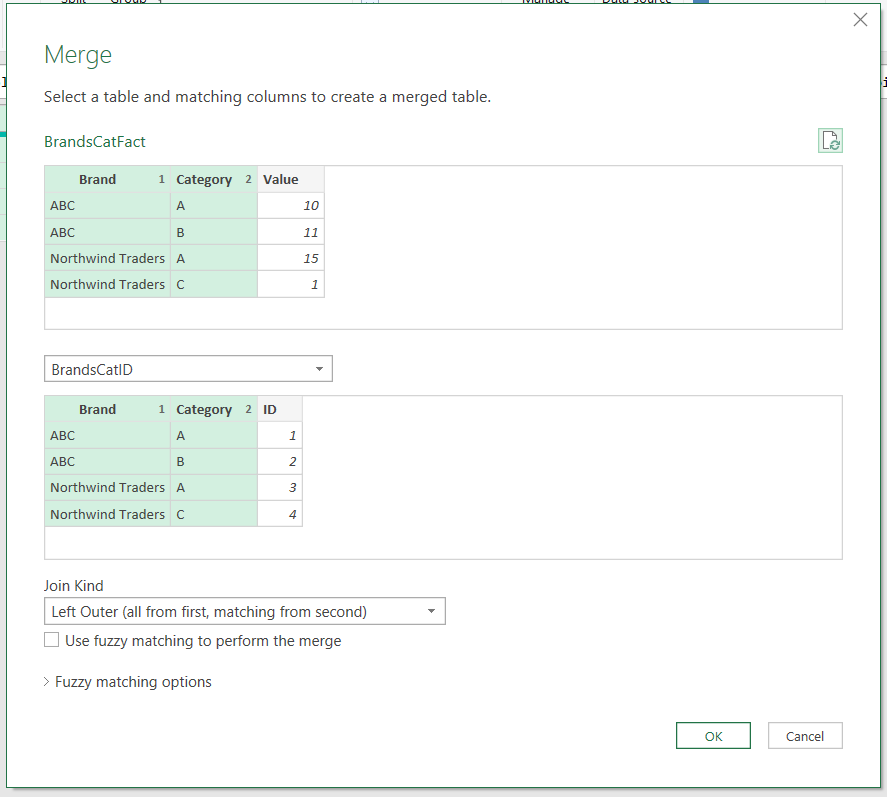
In the picture above, we are merging two tables based on matching columns: Brand and Category. In this case, both Brand and Category must be an exact match. What we want to observe is a different problem, i.e. merging based on one matching column and a range of values from another column (in this example a range of dates).
Merging Based on a Range of Values
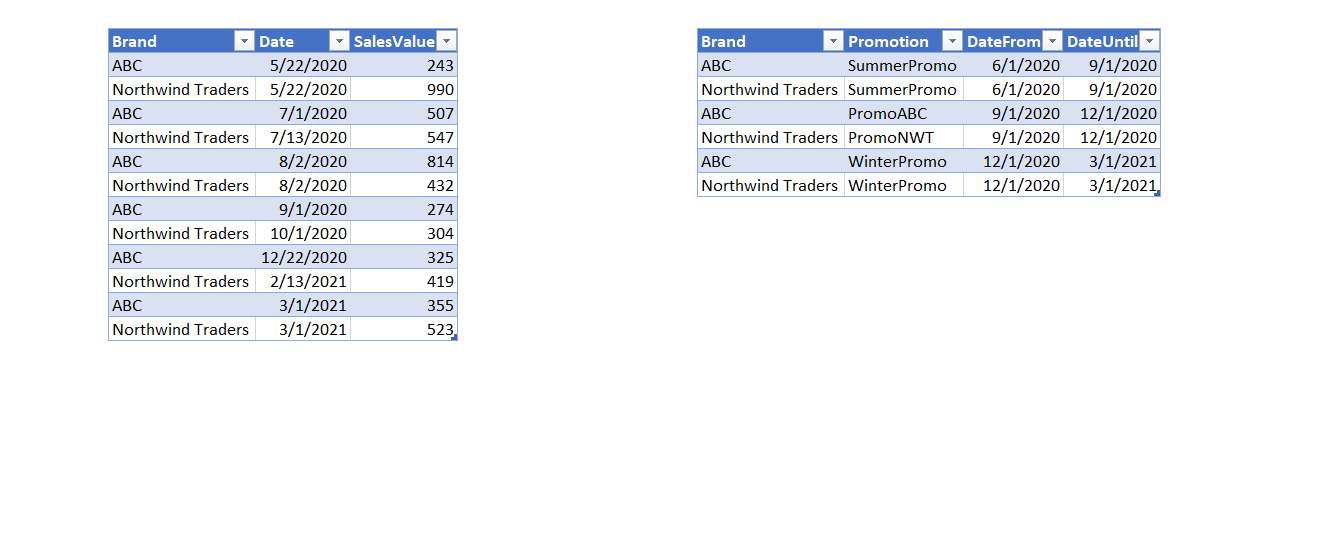
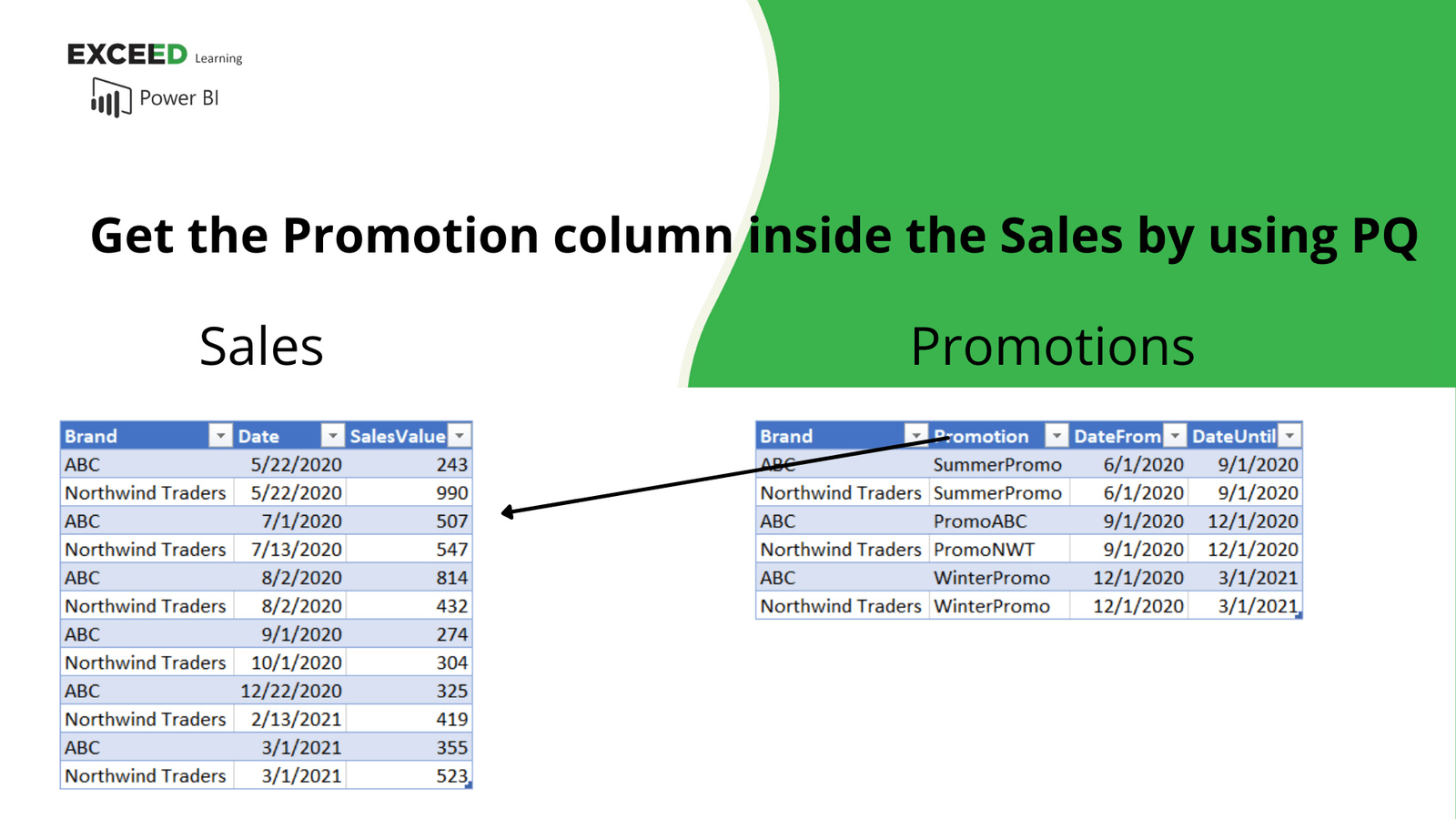
In the picture above, we can see two tables we want to merge – Sales and Promotions. We want to get the Promotion column in the Sales table. The merge requires a match on the Brand column, but we also want to take into account the date range in which the promotion happened. The date range is given in the Promotions table with DateFrom as the lower boundary and DateUntil as the upper boundary.
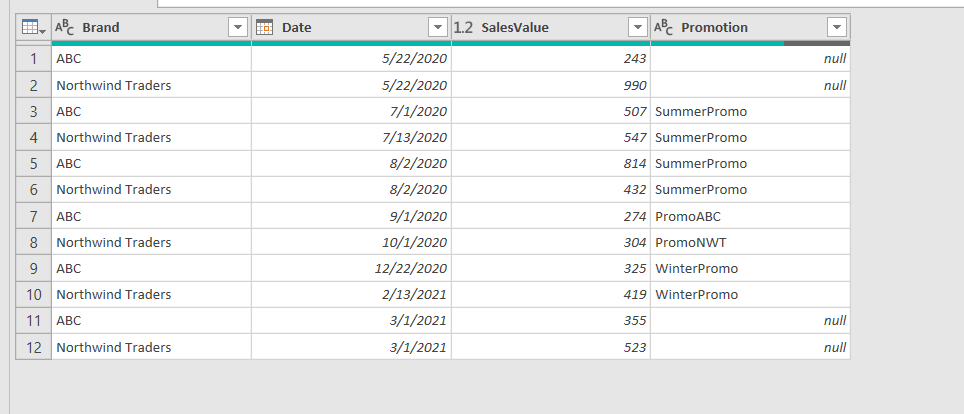
For example, the date of the first row of the Sales table is May 22nd, and in this period there was no promotion. In the third row, we have July 1st, which is inside the SummerPromo (between 6/1/2020 and 9/1/2020). In order to merge tables correctly, we need to use Brand and Date columns from the Sales table, and Brand, DateFrom and DateUntil columns from the Promotions table. To solve this problem, we will use nested environments and the full syntax of the “each“ keyword. In case you are not familiar with these topics, check out this blog in which we covered those topics in more detail.
The Solution - Custom Column with Table.SelectRows() function
We cannot use the standard merge option (Table.NestedJoin() function) as a solution for the problem since the Date column is not the exact (or even approximate) match of DateUntil or DateFrom. The Date column must be after or equal to DateFrom, and before or equal to DateUntil. Along with this, the Brand column of the Sales table must be an exact match to the Promotions Brand column. One way to solve this problem is to add a custom column that will use Table.SelectRows() function. This means combining Table.AddColumn() and Table.SelectRows(), which are both iterative functions. Table.AddColumn() is used to add a column to the Sales table that contains matching rows from the Promotions table. Table.SelectRows() is used to filter the Promotions table to select only the matching rows for each row in the Sales table.
Below, we will try to add a custom column and write an M code with the “each” syntax to get the rows from Promotions into the Sales:
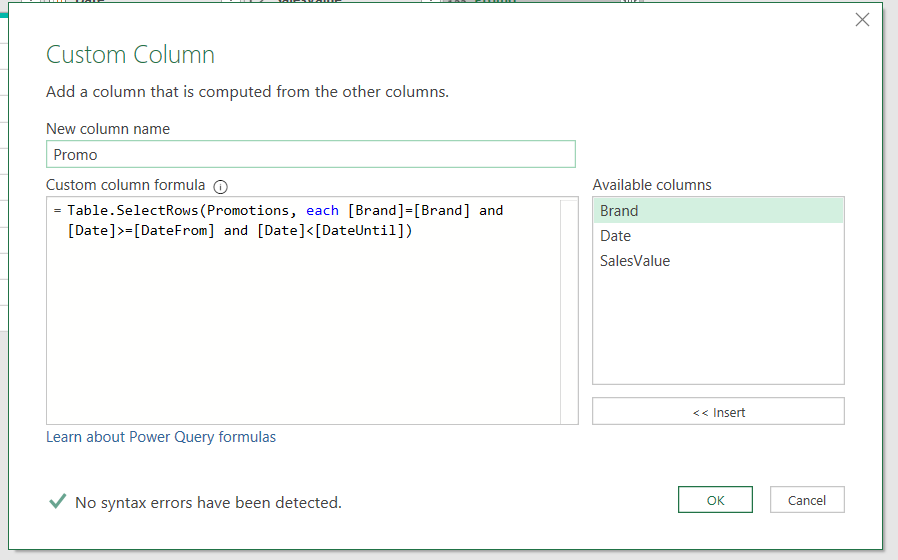
#"Added Custom" =
Table.AddColumn(Sales, "Promo",
                each Table.SelectRows(Promotions,
                                      each [Brand]=[Brand] and [Date]>=[DateFrom] and [Date]<[DateUntil]
                                     )
                )
In this step, we added the column in the Sales table with all 3 conditions (Brand from Sales equal Brand from Promotions, Date>=DateFrom and Date<=DateUntil).
When we hit enter, we get the nested tables, but inside the tables we get an error:
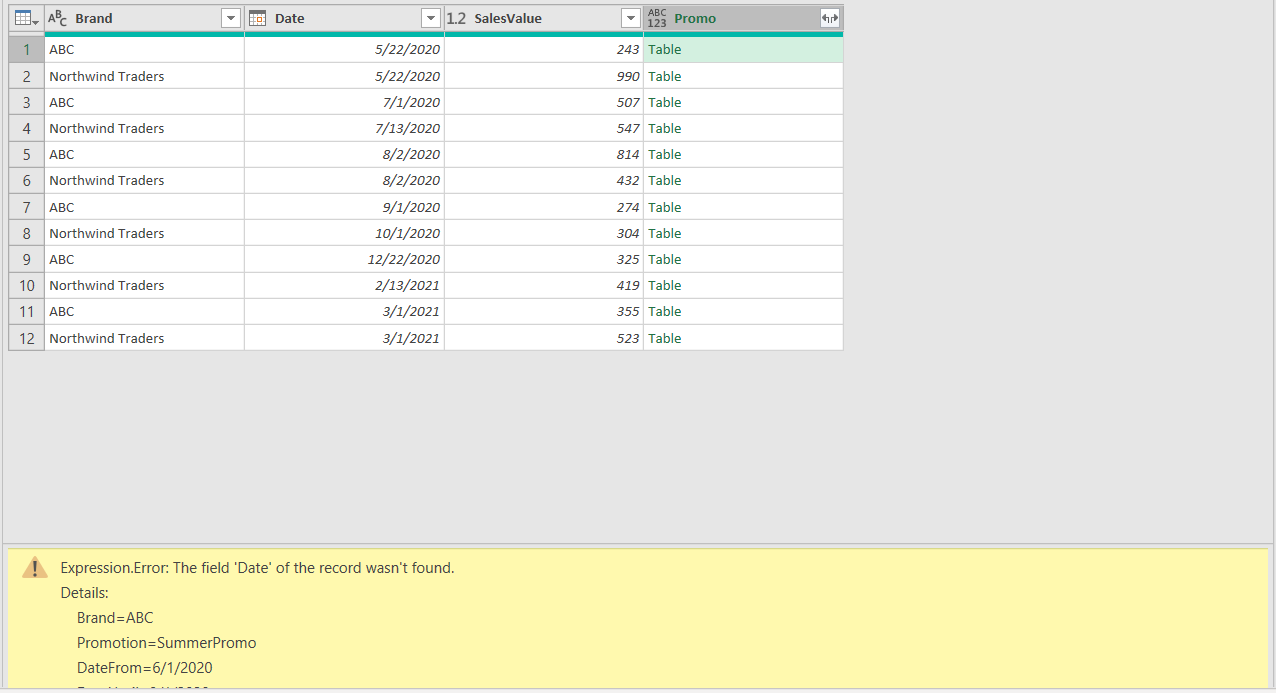
The error states that the Date field of the record was not found. As seen from the picture, Date column clearly exists. What is the problem then?
Each Keyword Debugging
If we observe the Added Custom step, we can see that the “each” keyword appears multiple times. If we write the full syntax instead of sugar syntax and replace each with a variable named X (you can find more on each syntax here), we get the following M code:
#"Added Custom" =
Table.AddColumn(Sales, "Promo",
               (X)=>  Table.SelectRows(Promotions,
                                       (X)=> X[Brand]= X[Brand] and X[Date]>= X[DateFrom] and X[Date]<X[DateUntil]
                                       )
               )
Since each is a sugar syntax for an unnamed variable, in the full syntax we introduced a variable called X. Because the variable X is introduced two times, we have X in front of all the columns inside the inner iteration (Table.SelectRows() function). Inside the inner environment (Table.SelectRows() function), X refers to the Promotions table, which is the first argument of the Table.SelectRows() function. Inside the Promotions table, there is no Date column. The error states exactly that.
If we use the full syntax, we can introduce 2 different variables, one called S (the outer variable, S stand for Sales) and P (the inner variable, P stands for Promotions).
#"Added Custom" =
Table.AddColumn(Sales, "Promo",
               (S)=>  Table.SelectRows(Promotions,
                                      (P)=> P[Brand]= S[Brand] and S[Date]>= P[DateFrom] and S[Date]<P[DateUntil]
                                      )
                )
By using the full syntax of each keyword, we introduced two different variables, referring to two different environments. In this way, for each row of the Sales table, we get nested tables with matching rows from the Promotions table. When we expand the Promotion column, we get the correct final result:
Performance Optimisation
Since we are doing nested iterations, when working with large tables, we can encounter performance issues. For optimizing the load speed of the query, we can use Table.Buffer() function prior to “merge” to buffer the inner table (Promotions). The full M code for this solutions is given below:
let
    BufferedPromotions = Table.Buffer(Promotions),
    Merge = Table.AddColumn(Sales, "Promo",
                            (S)=>  Table.SelectRows(BufferedPromotions,
                                                    (P)=> P[Brand]= S[Brand] and S[Date]>= P[DateFrom] and S[Date]<P[DateUntil])
                           ),
    #"Expanded Promo" = Table.ExpandTableColumn(Merge, "Promo", {"Promotion"}, {"Promotion"}),
    #"Changed Type1" = Table.TransformColumnTypes(#"Expanded Promo",{{"Promotion", type text}})
in
    #"Changed Type1"
Hope you enjoyed reading through this article. In case you have any questions, please post them below!
work fine on power query but when I closed and apply its loading forever, i think its looping, what should i change to correct the code?btw i have other code prior to merge
this is a brilliant solution, thanks so much. I used to link GL accounts ranges to the general ledger accounts table coming from ERP. Your work saved the day, thanks again
I've a really basic question.. in your performance-optimised version, the one that starts with "let", what comes immediately before it? Should it slot in after #"Added Custom" =?
Thank you very much for share this solution. Greetings from Brazil.
Not bad, not bad
Thanks mainly for the performance optimization. I have 10000s of rows, so I didn't get anything after 5 minutes of runtime, then I scrolled down and saw performance optimization, and I got the results in like 5 seconds.
Thank you so much for this solution! It worked perfectly for me.
Hi Kristian, I get the precise issue that Olfa Ahmed has. However, I went and manually checked the dataset and I have 233 rows that meet the criteria. However, it gets more complicated. If I filter the equivalent of my 'Promotions' table to focus on one singular brand (or customerID) in my case and then return to the 'Sales' table it actually gives me the option to pull in the columns I want after I click expand. Doing so, however, returns nothing but null values. If I then go back to the 'Promotions' table and undo the filtering, and return to the 'Sales' table I get this error: Expression.Error: There is an unknown identifier. Did you use the [field] shorthand for a _[field] outside of an 'each' expression? Any ideas? Best, Spyro
Hi - I just came across this and it worked like a charm! thank you so much!
Hi Kristian, Thanks for your great post - this is exactly what I was looking for. I have been breaking my head over the application in a file I'm working on at the moment, and cannot find the right coding. Perhaps you could have a look.... The code as I adapted it from your example is: = Table.AddColumn(#"Full Data - Initial", "Price newly added",(FDI)=>Table.SelectRows(#"Expanded Full Date - Price - All", (P)=> P[Shipment Route]= FDI[Route] and P[Service agent f.stage]=FDI[Service Agent] and P[Valid From] <= FDI[P.G.I. Date] and P[Valid To] > FDI[P.G.I. Date] )) Whereby the "Full Data Initial" is equal to your sales table ((and FDI is the equivalent of your S); the "Price newly added" is equal to your Promotions table (my P is your P); #"Expanded Full Date - Price - All" is the step preceding this operation. This results in a cyclical error. Strangely enough, when I tweak the formula to show: = Table.AddColumn(#"Expanded Full Date - Price - All", "Price newly added",(FDI)=>Table.SelectRows(#"Full Data - Initial", (P)=> P[Shipment Route]= FDI[Route] and P[Service agent f.stage]=FDI[Service Agent] and P[Valid From] <= FDI[P.G.I. Date] and P[Valid To] > FDI[P.G.I. Date] )) I get a cyclical error - note the "FDI" in front of the part of the comparison that sits in the table Full Data - Initial. When I use the same formula without the FDI in front of the comparison, the new column does load tables inside the newly created cells, but trying to expand the tables to extract the relevant column shows no columns in the embedded tables. It also seems like you can use the table Promotions in your formula without adding "" and # - when I do this, M does not recognize the text. All ideas welcome - and thanks again for making the effort to write down all of your steps!
Excelente!!, fué de gran ayuda!
I tried this - looks like exactly what I need - but I get errors First, the result is each cell in the column contains "Function" Then I try changing a column name so that I don't have the issue of both tables having a common column name, then I get the error "we cannot convert type table to Type Function. What is going on here?
Yes! I get this too!
Hi, Kristian! I am trying to do something very similar to your article here, but I cannot get it to work. I have 2 tables: "XYZ Charges - PQ" and "Land Orders". "XYZ Charges - PQ" includes 3 columns: "Land Account No.", "STDATE", and "STDATE - 7". "Land Orders" includes 2 columns: "Acct No." and "Order Date". I need to merge/join "XYZ Charges - PQ" and "Land Orders" together. "Land Account No." need to match "Acct No." exactly, but "Order Date" needs to be between "STDATE" and "STDATE - 7". I tried to modify your code to:
But I either get null results or received this error: Expression.Error: There is an unknown identifier. Did you use the [field] shorthand for a _[field] outside of an 'each' expression? What am I missing? Thank you, Cin
Hi Cin, You get null results because in the condition of Table.SelectRows function you specified the condition PSTDATE>=Invoice Date and PSTDATE<=Invoice date, which means that PSTDATE must be equal to the Invoice date (>= and <= at the same time). It would make sense to reference both PSTDATE and PSTDATE - 7 columns if you are looking for the period between the two dates. The condition: H[#"Account No."]=A[#"Harland Account No."] and A[#"PSTDATE - 7"] >=H[Invoice Date] and A[PSTDATE]<=H[Invoice Date].
I would like to join on the least difference. Why this produces error?
Full example is here: https://stackoverflow.com/q/71219988/1903793
Hi Remin, The reason your formula produces an error is the second argument of the Table.SelectRows function. In it, you need to filter the table with the boolean (true/false) expression. In your case, the part of the code with Number.Abs function returns a number instead of true/false (e.g. L[target] - R[actual] = 5-1=4 ). Trying to filter the table this way could be possible, but it would require you to use multiple nested environments, which would result in a very complicated formula and slow performance. I would suggest trying a different approach. By using your example from stack overflow I reproduced the problem. Below is a complete M code I came up with along with the explanation below:
First, we merged the queries by using the category column. After expanding the table, we subtracted two columns to get the absolute difference between target and actual. Finally, we group by category and sort the table by the Least difference column in ascending order (Table.Sort function inside the grouped rows). After this, we take the first row of the nested table (Table.First function), and finally expand the record column. Hope this helps :) Regards
Hi Kristian, I appreciate you answered so quickly and so thoroughly. Thank you also for pointing out a working solution. I have never come across a content like [Record] so far which emerges in your Group step. I love your custom functions (X) =>. A very large portion of M news for me. Great article. Thanks.
Thank you! Glad you find our content useful :)
Kristian, may I have your courtesy to quote your solution and comments on the Stack Overflow forum with an acknowledgement of your authorship and a link to this article?
Yes, feel free to share it
thanks :-)
This is singularly interesting step of your solution: #"Grouped Rows" = Table.Group( #"Inserted Subtraction", {"category"}, {{"All", each Table.First(Table.Sort(_, {{"Least difference", Order.Ascending}}))}} Do you have any articles on "Table.First(Table.Sort"? Looks like a shortcut for adding an index to existing table and filtering on it, doesn't it?
We do not have articles on this topic, but we do have videos in which we use the Table.Group function. The videos show how to manipulate nested tables that are the result of the grouping, just as in the code above. The links to the video are below: Optimizing Pivot: https://www.youtube.com/watch?v=0PA59DX-aBk Reverse fill down: https://www.youtube.com/watch?v=USwj-ueJOgc Table.First(Table.Sort is another way of filtering max or min value from a table by using sorting and keeping only the first row of the table.
Original: #"Grouped Rows" = Table.Group(#"Inserted Subtraction", {"category"}, {{"All", each Table.First(Table.Sort(_, {{"Least difference", Order.Ascending}}))}}), Simplyfied: #"Grouped Rows" = Table.Group(#"Inserted Subtraction", {"category"}, {"All", each Table.First( Table.Sort( _, "Least difference" ) ) } ) Can you please explain the reason for using all, and especially the excessive (if any are really excessive?) curly brackets? I marked them with bold in the original step.
There is no real difference, the excessive brackets are there because the Power Query engine writes the M code in this way when you use the user interface. The double curly brackets in Table.Sort function might come in useful when you want to sort by multiple columns: Table.Sort(_, {{"Least difference", Order.Ascending}, {"actual", Order.Ascending}} )
Hello, Thank you for the Code. I tried it, however when i expand the "promo" column i get nothing. any idea why?
Hi, I would assume the 3 filter conditions you put return an empty set, so you always get nulls. You should check your filtering conditions (brand, datefrom and dateuntil). Perhaps it could be due to the lower/upper case letters in the brand column.
Great article, exactly what I'm looking for. The only thing I do not understand is where you introduce 2 new variables, S and P. Do you create new variables outside of the query? If not, i.e. if you created the variables inside the query, where does (S) select the Sales table? Many thanks, great work!
Hi Paul, Thank you! There are no variables created outside of the query. The S and P variables are both created inside the Merge step. The S variable is the argument of the Table.AddColumn function, which operates on the Sales table (the first argument of the function), so it "selects" the Sales table. We define the variable S with the following syntax: (S)=>. The P variable is defined inside the inner environment, i.e. inside the Table.SelectRows function, so it selects the BufferedPromotions table.
Hey Kristian, Did everything to the letter but still keep getting the dame error as on the beginning of your thread.
Hi Achilleas, Your COTAS_METERS table is inside the inner environment, so the FROM column (uppercased FROM since PQ is case sensitive) must exist in it. Also, the TANK column must exist inside the #"Removed Columns1" step. You are also missing the closing bracket at the end of the formula, to close the Table.AddColumn function. If all conditions are checked, you should not get an error since your code is correctly written. Regards, Kristian
Thanks Kristian!! Had mixed up the inner environment... works great now!!
Hey Kristian, Thanks for sharing! Its exactly what I was looking for.
Do you think if we Include the Table.TransformColumnTypes before expanding it will result in bad performance? example: #"Expanded Promo" = Table.TransformColumnTypes(Table.ExpandTableColumn( My best!
Hi Gustavo, Glad it helped! :) I think there would be no significant change in performance if you would include Table.TransformColumnTypes prior to expanding.
Hi Sir, I have some similar synario where I need to take the Min date after the date in table 1 How can write Min function with variable.
Similar question, except my data from table one has many matches to table two. After the join, I want to take the min DateUntil result from Table 2.
Hi KJ, Please see the comment above, as I think it could solve your problem as well. Regards, Kristian
Hi, You can try adding another step after the Merge step with the following code: = Table.TransformColumns(Merge, {{"Promo", (Outer)=> Table.SelectRows(Outer, (Inner)=> Inner[DateUntil] = List.Min(Outer[DateUntil]))}}) In this step, we are using nested environments to filter the nested tables in Promo column. We use the min date from the Outer environment to filter the inner table (from the inner environment of Table.SelectRows function).
Perfect! Just what I was looking for! Thank you very much Kristian