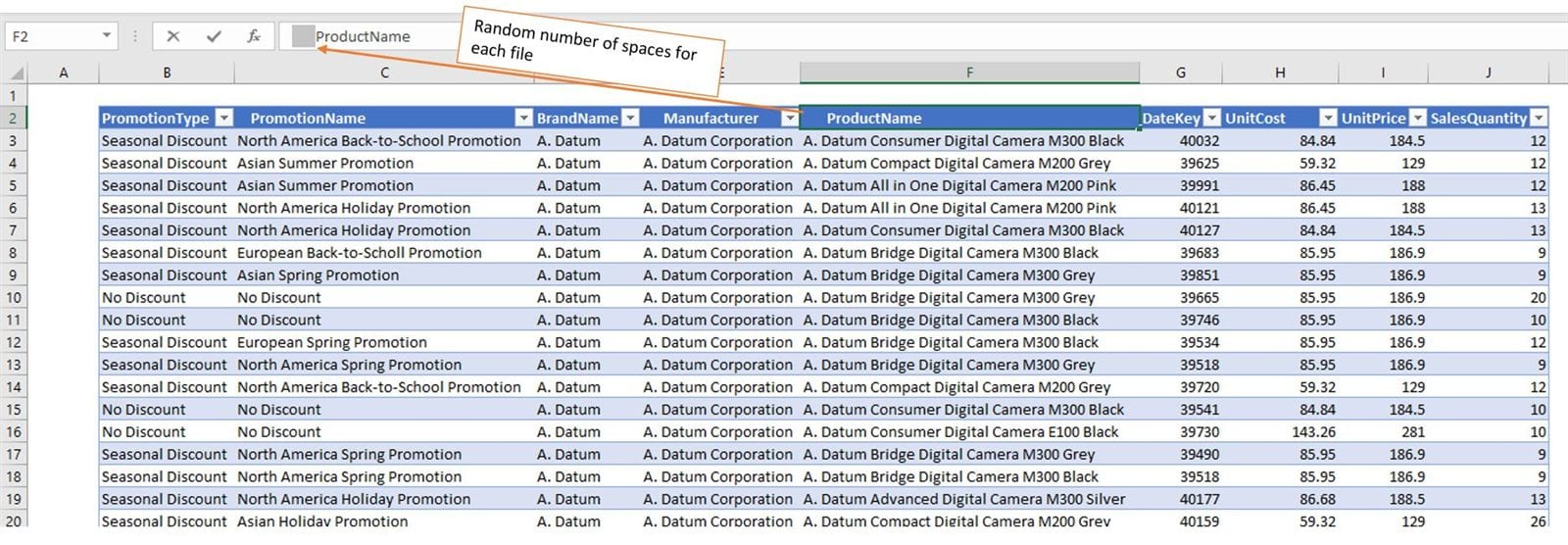
In this article, we are going to talk about cleaning and transforming column names dynamically and in a bulk. The article was inspired by a request from a client who had issues exporting data from its data warehousing program to .csv files.
Out of an unknown reason, program was adding random spaces and non-printable characters before or after column names. There was no predictable logic on where it could introduce additional characters in the export. Since the export was scheduled to run every day, it would be a nightmare to have to manually find all column name misspells and correct them.
Using the general approach of demoting headers -> transposing tables -> cleaning the first column -> transposing again was not an option because files were big, therefore double transpose would take forever to process.
Following is the solution we created that could be further enhanced to provide even more flexibility with dynamic column names renaming. We used records, lists, and an iteration to reach the solution, so this should be a pretty educational topic.
For the demonstration purposes, we will use an extract from the Contoso database. If you wish to follow along or use the final function in your solutions, you can download the Excel file here.
The problem
Every time program had exported the data, column names exported with a random number of spaces. All other structures of the file were correct.
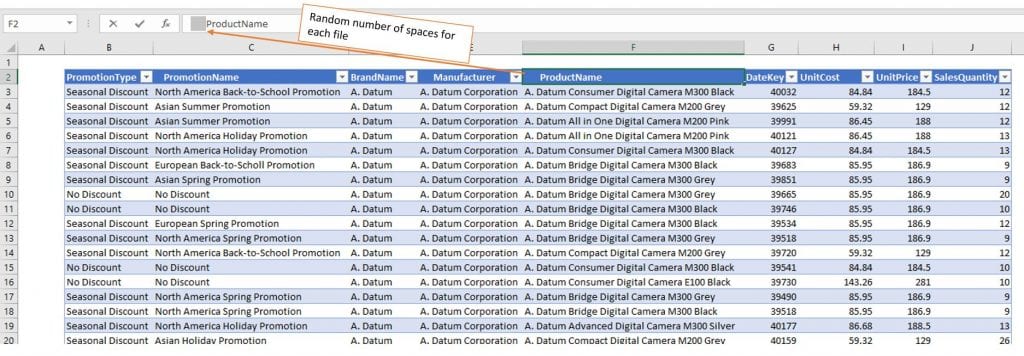
Since we needed to consolidate every daily export in a single database (we are talking about 365 different exports for a single year of data), we needed to create a function that will dynamically clean column names from additional spaces.
Solution Using Dynamic Function Arguments
We will need to use Table.RenameColumns() function, but with a dynamic argument holding column names to change. If we try to change the column names manually, this is the code we get:
#"Renamed Columns" = Table.RenameColumns(Source,{{" ProductName", "ProductName"}, {" Manufacturer", "Manufacturer"}})
Now, if we focus on the second argument of the Table.RenameColumns() function, we can see that it is returning a nested list of lists! If we run that expression, this is how it looks like in PowerQuery:
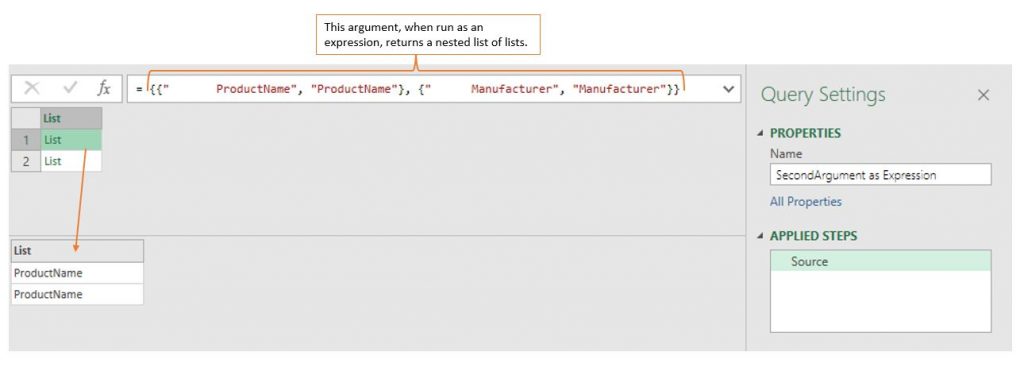
Each nested list is holding the original and new name of the column. If we want to make our rename columns function dynamic we need to alter the nested lists argument so that it accepts wrong and correct column names for each column.
The following M code will give us the old and new, cleaned column names.
let
    Source = Excel.CurrentWorkbook(){[Name="Table1"]}[Content],
    DemoteHeaders = Table.DemoteHeaders(Source){0},
    CreateTableFromRecord = Record.ToTable(DemoteHeaders),
    DuplicateOldColumnNames = Table.DuplicateColumn(CreateTableFromRecord, "Value", "Value - Copy"),
    RenameColumns = Table.RenameColumns(DuplicateOldColumnNames,{{"Value", "OldColumnName"}, {"Value - Copy", "NewColumnName"}}),
    TrimmedText = Table.TransformColumns(RenameColumns,{{"NewColumnName", Text.Trim, type text}})
in
    TrimmedText
Let’s explain the most important parts about the script so far:
- {0} in DemoteHeaders step is used to create a record from a table holding only the first row from the demoted headers source table. Table indexing starts from 0, so running this expression will yield the following record
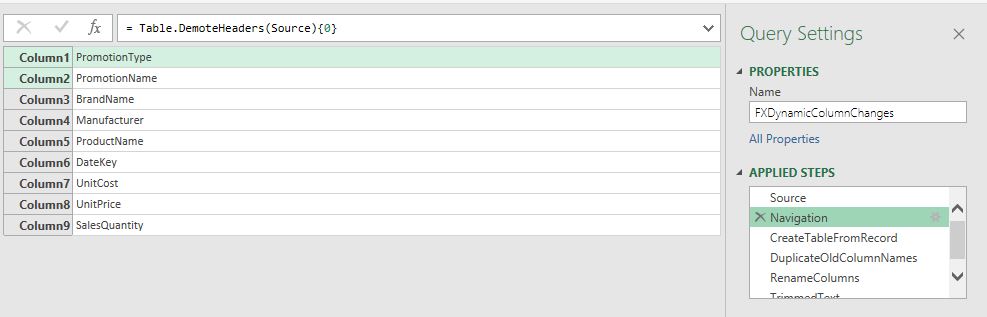
- After we transformed that record to a table, we duplicated the values column which is holding the old column names.
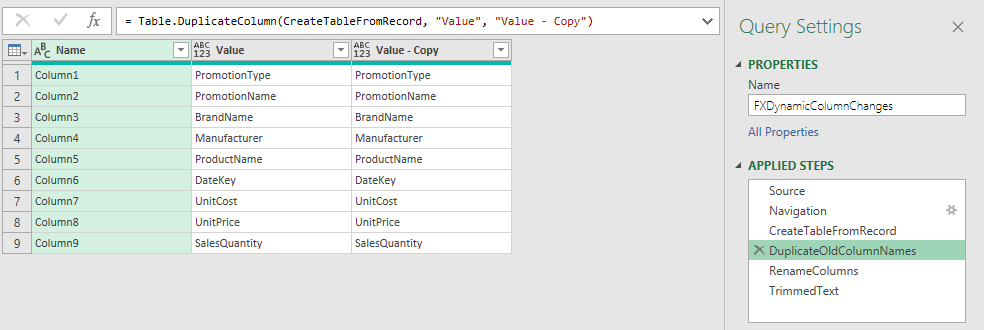
- In the last 2 steps, we renamed both columns and cleaned values in the NewColumnName column.
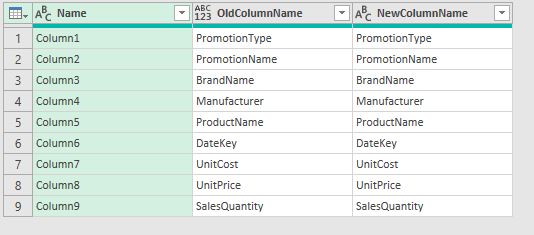
I only used Text.Trim transformation over the NewColumn, but you can also use any other transformation to further clean column names, like Clean, Text.Proper, etc.
Creating a Nested Lists Argument
Now we have 2 columns holding wrong and correct column names that we need to transform to list of nested lists. The easiest way to achieve that through the PowerQuery user interface is to add a new custom column and write the following expression.
={[OldColumnName],[NewColumnName]}
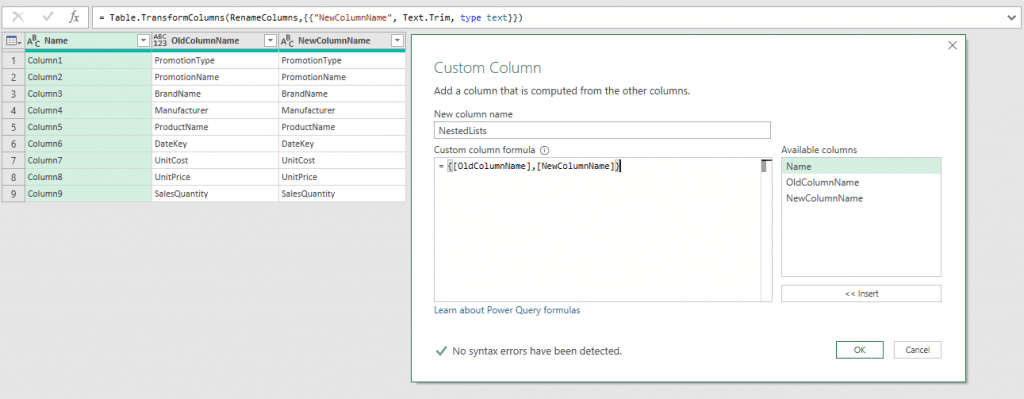
{} is a syntax for creating a list object, and inside of that object, we added old and new column names separated with a comma.
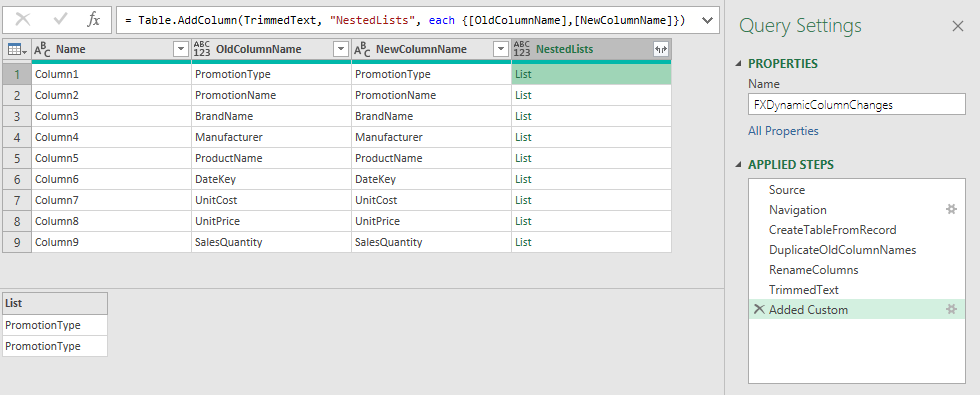
Now, let’s focus on the formula bar, specifically each keyword . The keyword each is a sugar syntax for iterating function invoke that is holding a single underscore argument that is entering the function.
Without the sugar syntax, this would be the equivalent of the each keyword.
#"Added Custom" = Table.AddColumn(TrimmedText, "NestedLists", (_)=> {_[OldColumnName],_[NewColumnName]})
The underscore is a record type argument holding all the column values of the current row of an iteration.
So for each row in a table, the underscore will push the currently iterating row old and new column name inside of the list structure that was introduced with the {} bracket syntax.
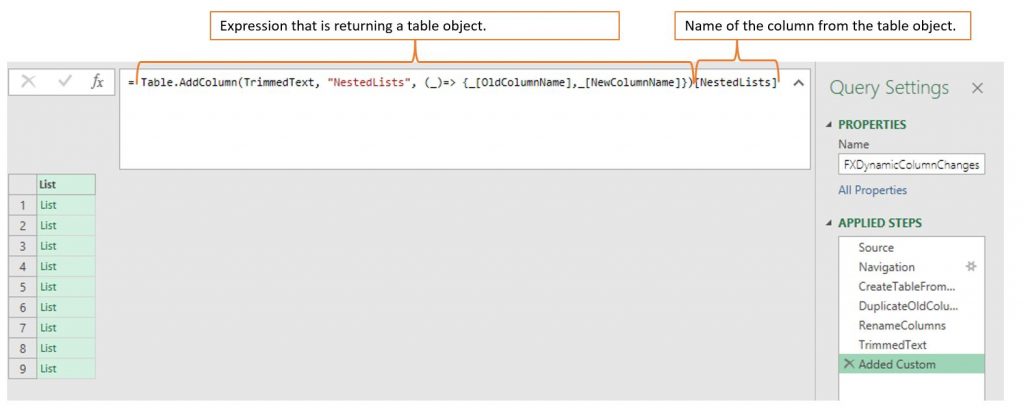
To get a nested list of lists, we also need to transform that NestedLists column to a list.
The easiest way of drilling to a single column from a table and transforming it to a list is to write the name of the column inside of round brackets right after the expression that is returning a table.
Creating a function from the query
Receiving an adequate list argument for the Table.RenameColumns() function was the harder part of development. Now that we have the correct argument form, we need to create a function that would accept a table variable with messy column names and clean it with the logic we already set in the list argument. Following is the complete M function code:
(TableWithDirtyNames as table) as table=>  //InputTable variable
let

    ListObjectWithCleaningLogic =  //We put the whole logic of list creation inside of this variable
        let
            Source = TableWithDirtyNames, // Source should point to the InputTable variable
            DemoteHeaders = Table.DemoteHeaders(Source){0},
            CreateTableFromRecord = Record.ToTable(DemoteHeaders),
            DuplicateOldColumnNames = Table.DuplicateColumn(CreateTableFromRecord, "Value", "Value - Copy"),
            RenameColumns = Table.RenameColumns(DuplicateOldColumnNames,{{"Value", "OldColumnName"}, {"Value - Copy", "NewColumnName"}}),
            TrimmedText = Table.TransformColumns(RenameColumns,{{"NewColumnName", Text.Trim, type text}}),
            #"Added Custom" = Table.AddColumn(TrimmedText, "NestedLists", (_)=> {_[OldColumnName],_[NewColumnName]})[NestedLists]
        in
            #"Added Custom",

    CleanColumnNames = Table.RenameColumns(TableWithDirtyNames,ListObjectWithCleaningLogic) //this step is taking InputTable as a starting point and using list variable to transform all column names at once
in
    CleanColumnNames
Additional explanations of the function:
- We have only a single table argument entering our function (TableWithDirtyNames).
- We put the whole logic of nested lists inside of a ListObjectWithCleaningLogic step. This way we are making the code easier to maintain and change in case we need to add more transformation logic to the new column names.
- The Source step of the inner environment (environment of the ListObjectWithCleaningLogic variable) should also point to the function input variable.
- In the CleanColumnNames step we called the table as it was at the source step (before we created the nested lists step), and as a second argument to the Table.RenameColumns() function we provided the nested lists applied step.
Wrapping up
We used this technique to dynamically change column names without transposing the table structure. You can further enrich the function in case you need more control over the new column names. In that case, you would need to adjust the inner environment variable. That means that other transformations of the values in the NewColumnName column should be added after the TrimmedText applied step. We used list and record objects in creating the solution so hopefully, you got a clearer picture of how to use them and where. We also glimpsed at the each keyword so overall I hope this article was clear enough and educational.
In case you have any questions, please feel free to post them below!
Hi! Thank you for this great post. Rather than using Text.Trim, I'm trying to do a Text.Replace. I tried doing this: TrimmedText = Table.TransformColumns(RenameColumns,{{"NewColumnName", Text.Replace("NewColumnName"," ","_"), type text}}) I am trying to replace spaces with underscores. But I get an error that "We cannot convert the value "NewColumnName" to type Function". How should I modify my code?
TrimmedText =Table.TransformColumns(RenameColumns,{{"NewColumnName", each Text.Replace(_, " ", "_" )}}),
Disregard the formatting pasted in wrong. Use this one.
Brilliant solution. Piece of genius
Hi, I already tried all of your steps including the on in youtube video. But I'm having this kind of error when I try to load new table to be invoked by the function. Can you guide on fixing this? Thank you. An error occurred in the ‘’ query. Expression.Error: We cannot convert the value "Demoted Headers" to type Record. Details: Value=Demoted Headers Type=[Type]
Really informative video and solution, thank you Krešimir. It really helped me understand scripts and lists more. Quick question - invoking the function creates a new table, is there a way to rather change the existing table or overwrite it rather than creating a new one? i.e. the solution works I just wanted to clean up the additional table left.
Hi Chris, Yes, there is. You should invoke the function inside the existing query using the previous step as an argument. If the last step of your current query is Changed Type, then insert the step after with the following formula: FunctionInvoke = FXClean(#"Changed Type")
Excellent, thanks Krešimir! That's very useful and works brilliantly. Dynamic scrubbing is a thing of beauty!
Brillant solution! I have approx 3000 Excel files that I have to append. I have used some of the custom functions to do the output, but I struggle with different numbers of columns and different column names which give many Refresh errors. Example : (A) 70% of the Files: 10 Columns - all numbers of columns and columns headers are correct. Before promoting the headers: The values in Row{0} can be used for header names: for Col 1 to 7 and Col 10, but column 8 & 9 are merged and cannot be used as a header name, but instead, the Row{1}, Col 8, and Col 9 must be used as the header name. ------------------------------------------------------------------------------------------------------------------- (B) 10% of the Files: 11 Columns - Column4 is an additional column. It can have up to 3 different header names Before promoting the headers: The values in Row{0} can be used for header names: Col 1 to 3, and Col 5 to Col 8, but Col 9 & 10 are merged and cannot be used as header names, but instead, the Row{1}, Col 10 and Col 1 must be used as the header names. ------------------------------------------------------------------------------------------------------------------- (C) 20% of the Files: 10 column names. It can have up to 3 different header names. Before promoting the headers: Same as (A), but some of the column header names will changes (up to 3 different header names) I was wondering if I can build this kind of clean-up into your solution? Or can you suggest another method? // Jan Pedersen NB: I have requested a connection to your linkedin profile. Thanks for accepting.
Hi Jan, if every file has all to column names either in row1 or 2, you can try transpose-merge-transpose approach to get all the combinations in a list of values. you could then load that list in an Excel table and put the correct name in a new column. you would then load that table in a PQ, and use it in Inner let to merge correct names with the wrong ones.
Last, you should also use the same approach for each iteration of the file (transpose-merge-transpose) before applying the FXCleanColumnNames function.
Work perfectly! Thank you very much for your excellent support. I have tried to filter rows in the Inner let as described in your answer to Escuchame, but it doesn't work for me. I filtered 22 rows down to 20 rows. The SelectRows step will reduce the nested lists from 22 Columns to 20 Coulnms, but when I expand the columns with the cleaned header names, PQ still shows 22 columns.
I have moved the selectcolumns function to the Outer Let, this works fine
Excellent post! I was able to use this for my own data, but I would also like to add a step where filter out unwanted columns and pass the resulting list to a Table.SelectColumns step. However, I'm not sure if I can refer to just the "NewColumnName" side of the list? Do you know if that is possible, and if so, how that line of code would be written?
Hi! you can do that by including a filter step before creating a list. something like this:
Table names are lists, therefore it's easier to use list functions: (TableWithDirtyNames as table) as table => let OldNames = Table.ColumnNames(TableWithDirtyNames), NewNames = List.Transform(OldNames, each Text.Trim(_)), RenamedColumns = Table.RenameColumns(TableWithDirtyNames, List.Zip({OldNames, NewNames})) in RenamedColumns
Hi Frank, thank you for your input! We were aiming at providing a more generic approach and explaining the steps along the way, of which most can be created through UI. This way readers can easier understand the topic and tweak the code to fit their needs. By table names you were thinking of column names, right?